

Build an audience
Grouping donors into a named list so an email campaign reaches the right people.
An audience is a named group of donors, so you can send one email campaign to exactly the people it’s meant for instead of everyone. It is either Hand-picked, a list you build yourself, or Rule-based, a group DonorCARE keeps up to date from conditions you set.
Before you start
Section titled “Before you start”- For a hand-picked audience, build your donor list first, using the Donors table’s filters and search, so you know who you’re adding before you start.
- For a rule-based audience, decide the conditions first (tags, campaign, amount, dates or churn risk).
-
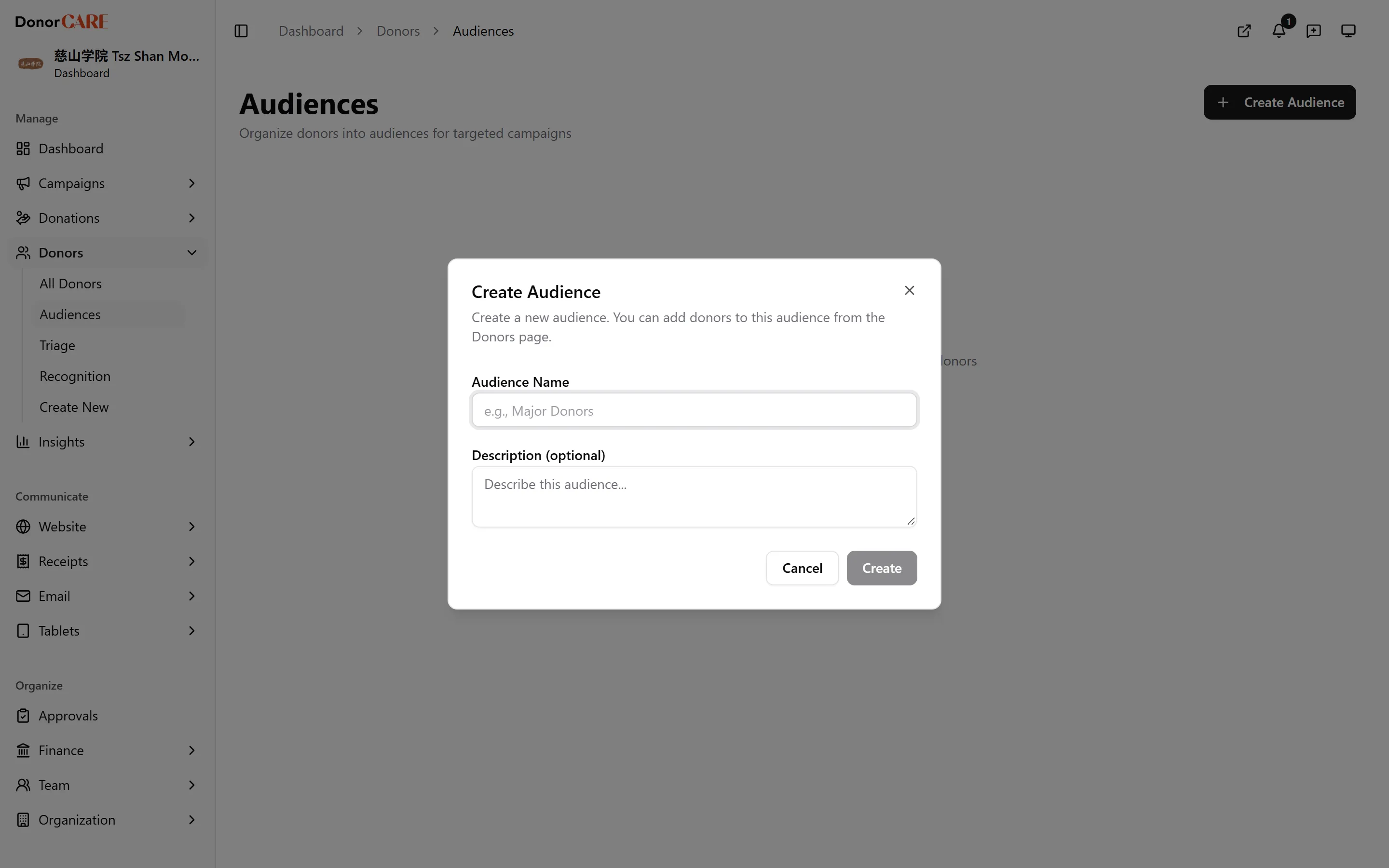
Open Donors → Audiences, then select Create Audience.
-
Give it a name and, optionally, a description. Name it for what it’s for — “Major Donors 2026” or “Ramadan appeal — lapsed” reads better later than “List 1”.
-
Under Type, choose Hand-picked or Rule-based. Hand-picked is the default. For a rule-based audience, see Build a rule-based audience below.
-
Select Create. A hand-picked audience appears as an empty row in the list, ready for members.
-
Go to Donors → All Donors, filter or search for the donors you want, then select them using the checkboxes.
-
Choose Add to Audience from the bulk actions, then select the audience you just created. A confirmation shows how many donors were added. The list offers only Hand-picked audiences, because a rule-based audience takes its donors from its rule and never by hand.
-
Repeat from a different filter to keep adding to the same audience, or create a separate audience for a different group.
Build a rule-based audience
Section titled “Build a rule-based audience”A rule-based audience fills itself with the donors who match all of the conditions you set. It is updated when you save and once a day.
-
In the Create Audience dialog, give it a name, then under Type choose Rule-based. Condition fields appear below.
-
Set at least one condition. Create stays unavailable until you do. The fields are:
- Date range — donors who made a completed gift in that range.
- Tags — donors with the tags you pick.
- All campaigns — change it to one fundraising campaign to reach only the donors who gave to it.
- Min RM and Max RM — the donor’s total given, not a single gift. If you set only a maximum, a note reads “Includes people with no gift yet.”
- Any churn risk — change it to a band such as High churn risk or Critical churn risk.
-
Select Create. A message reads “N donors match this rule.” with the number of donors found. The audience shows Rule-based under Type and its current donors under Members.
A rule-based audience has no Manage Members action in its row menu. To change who is in it, choose Edit and change the rule.
When a row says “Rule needs fixing”
Section titled “When a row says “Rule needs fixing””This label appears when a tag or campaign the rule uses has been deleted. Emails to the audience are paused until the rule is edited. Open the row menu, choose Edit, remove or replace the deleted tag or campaign, and select Save.
Changing the type of an audience
Section titled “Changing the type of an audience”- A Hand-picked audience that already has members cannot be changed to Rule-based, because the rule would replace them. In Edit, Rule-based is unavailable and the screen says “This audience has hand-picked members. Create a new rule-based audience instead.”
- A Rule-based audience can be changed to Hand-picked. The screen says “The current members are kept as a hand-picked list.” and you can then manage them by hand.
See who is in an audience
Section titled “See who is in an audience”On Donors → All Donors, open the All audiences filter and choose an audience. The list shows only that audience’s members, and a “Filtered view” banner reminds you the filter is on. You can combine it with the other filters, for example an audience plus a tag, and Clear all on the banner removes every filter at once. The Export menu then offers Export filtered, so you can download exactly that audience as a CSV. See Find donors.
Using an audience
Section titled “Using an audience”Once it has members, select it as the recipient list when composing an email campaign under Email. A Hand-picked audience doesn’t update itself as new donations come in, so revisit it and add anyone new before you send to it again. A Rule-based audience is recounted before each send, so it follows its rule. If its rule can no longer be applied, the send is refused until you fix the rule. See Send an email campaign.
Related
Section titled “Related”Screenshots use sample data. Every screen on this page is captured against a demo organization seeded with generated donors, amounts, receipt numbers and campaigns. Any resemblance to a real person or organization is coincidental.