

Work through Setup Health
What each item on the setup checklist means and how to complete it.
Work through Setup Health to see exactly what’s stopping your organization from taking a donation end to end, and what’s merely running on DonorCARE’s defaults.
Before you start
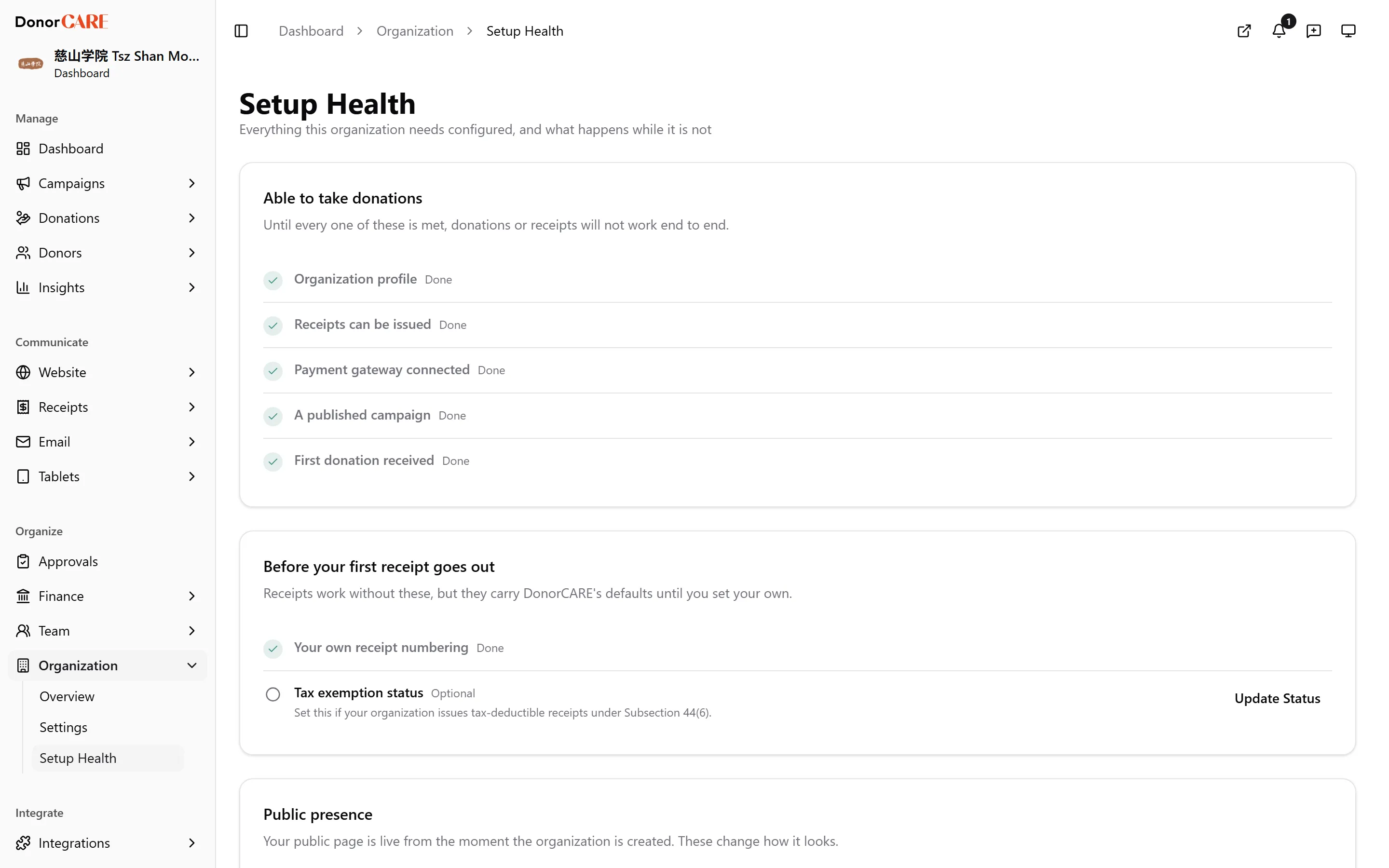
Section titled “Before you start”Sign in and open Organization → Setup Health. The page splits into two groups: the essentials that block real donations, and health items that never block anything but improve on a default.
-
Complete the organization profile. Your legal name, registration number and address print on every receipt — until this is filled in, receipts carry blanks where they should carry your details. Completing it unlocks correct receipts.
-
Set up a working receipt template. Without a usable template, a donation can complete without a receipt ever being issued. Completing it unlocks receipt issuance.
-
Connect a payment gateway. Setup Health lists this first, because the gateway’s own review is the one step that waits on someone else: register a CHIP account at the start, and carry on with the other steps while CHIP reviews it. Until your own gateway is connected, switched on and set as primary, your checkout is in test mode — only your team can try it, no real money is collected, and donors see “Online donations are not available yet”. DonorCARE never takes donations into its own account on your behalf. You can still record donations by hand and issue receipts in the meantime.
-
Publish a campaign. A draft campaign can’t take donations, online or recorded by hand. You can publish before your gateway is connected; DonorCARE asks you to confirm first. Completing it unlocks recording donations, and donations arriving from the public once your gateway is live.
-
Take one real donation. This confirms payment and receipt both work end to end — not just that they’re configured. Completing it is your proof the whole chain works, not a configuration step.
-
Set your own receipt prefix. Until you do, receipts go out under the generic
DC-prefix instead of your organization’s own numbering. Completing it unlocks receipts your donors recognize as yours — see Set your receipt numbering. -
Set your tax exemption status. Only relevant if your organization issues tax-deductible receipts under Subsection 44(6). Completing it is what a campaign’s tax-deductible opt-in depends on.
-
Add your logo and hero image. Your public page is live from the moment your organization is created, but shows a placeholder until you add these. Completing it unlocks a public page that looks like yours.
-
Configure your BizCARE API key. Only relevant if you submit e-invoices to LHDN through MyInvois — available on the Enterprise plan. Completing it unlocks e-invoice submission.
If something goes wrong
Section titled “If something goes wrong”| What you see | What it means | What to do |
|---|---|---|
| An item is grayed out with a lock, or marked not applicable | It’s blocked by an earlier unmet item, or isn’t relevant to your plan. | Complete the item Setup Health names as the blocker first, or ignore it if it’s marked not applicable. |
| A gateway shows as saved but the “Able to take donations” item stays unmet | The gateway is switched off, or none is set as primary. | Open the gateway’s settings and confirm it’s enabled and marked primary. |
Related
Section titled “Related”Screenshots use sample data. Every screen on this page is captured against a demo organization seeded with generated donors, amounts, receipt numbers and campaigns. Any resemblance to a real person or organization is coincidental.