

Add Google Analytics
Connecting GA4 and Search Console to your public site.
Connect Google Analytics 4 and Google Search Console so you can see where your donors come from and get your pages found on Google.
Before you start
Section titled “Before you start”- This integration is available on the Enterprise plan.
- Connect a custom domain first if you have one — analytics and search verification work against whichever address your donors actually visit.
-
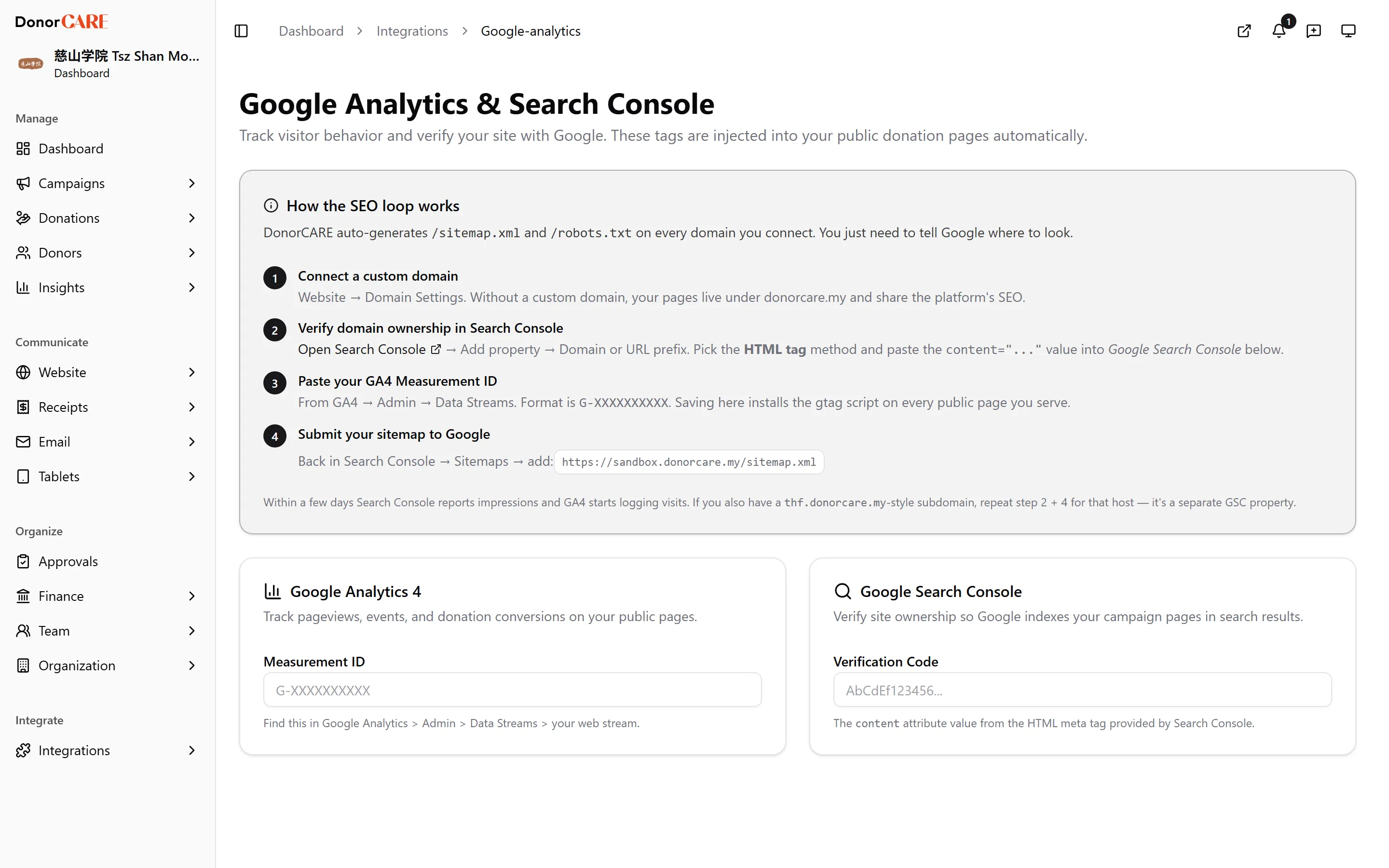
Open Integrations, then All Integrations, and select Google Analytics.
-
In Google Search Console, add your property and choose the HTML tag verification method. Paste the value from its
contentattribute into the Verification Code field here. -
In Google Analytics 4, go to Admin → Data Streams → your web stream and copy the Measurement ID (it looks like
G-XXXXXXXXXX). Paste it into the Measurement ID field. -
Select Save Settings. DonorCARE injects both tags on every public page automatically — campaigns, donation flows and your organization profile.
-
Back in Search Console, submit your sitemap. DonorCARE generates one automatically for your domain at
/sitemap.xml.
If something goes wrong
Section titled “If something goes wrong”| What you see | What it means | What to do |
|---|---|---|
| “This integration is available on the Enterprise plan” | Your organization isn’t on the Enterprise plan | Speak to whoever manages your plan about upgrading, or use Google’s own tools directly on your site in the meantime. |
Related
Section titled “Related”Screenshots use sample data. Every screen on this page is captured against a demo organization seeded with generated donors, amounts, receipt numbers and campaigns. Any resemblance to a real person or organization is coincidental.