

Publish a campaign
Publishing takes a campaign from Draft to a live, public donation page — once you’ve cleared the checks DonorCARE runs to make sure donors can actually give.
Before you start
Section titled “Before you start”- Open the campaign and check its Launch Readiness score in the sidebar. Anything marked required must be complete before DonorCARE will let the campaign go live.
- If your organisation has publish approval switched on, publishing sends the campaign to a second person for sign-off instead of taking it live immediately — see Set up approvals.
-
Review the Launch Readiness checklist. In DonorCARE, open the campaign. The Launch Readiness card lists each check — Campaign name set, Description written, Hero image uploaded, Collection goal set, Start & end dates configured, at least one donation item (or offering) created, Contact person assigned, and an active primary payment gateway. Select an incomplete item to jump straight to the tab where you fix it.
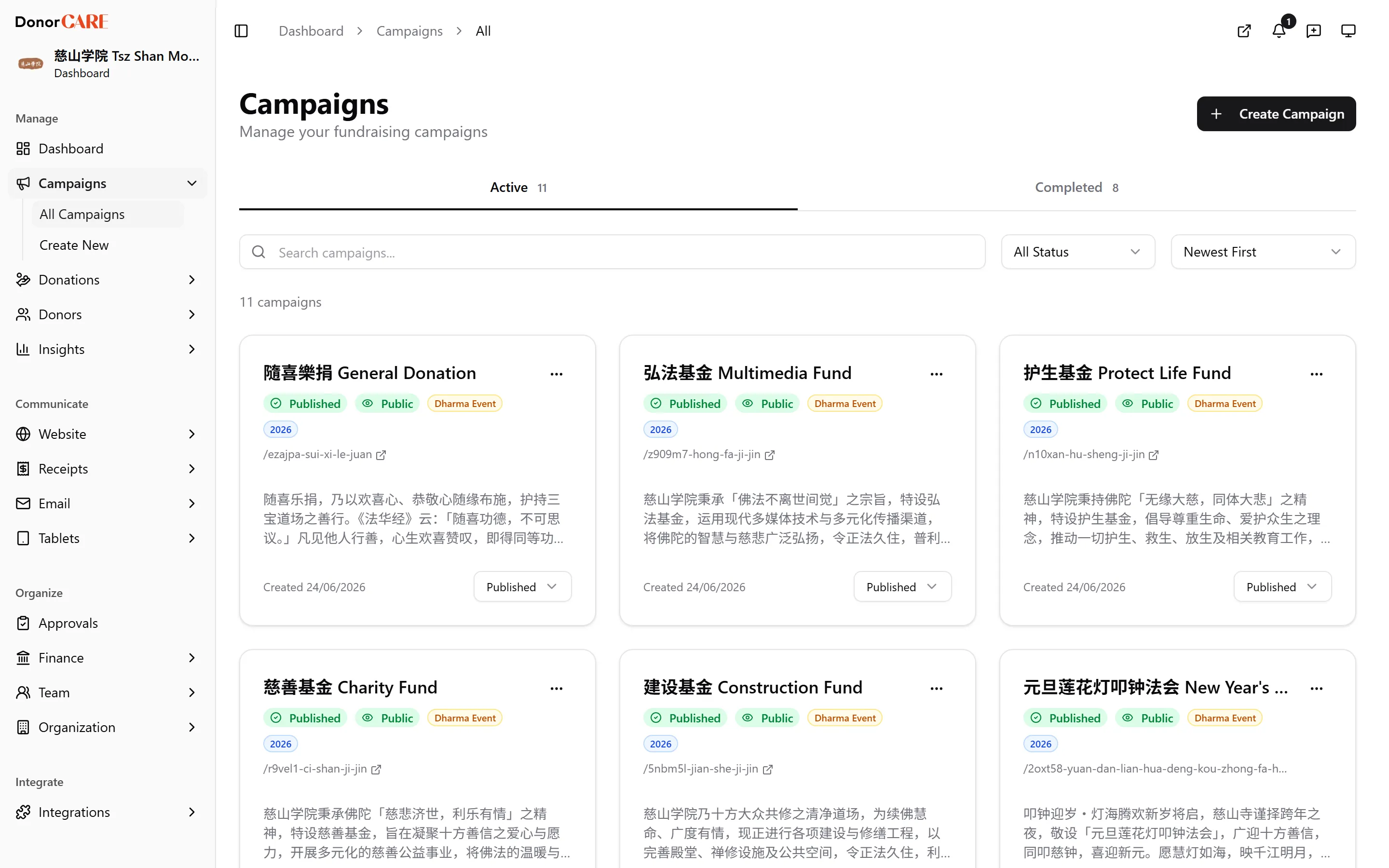
-
Clear every item marked “required”. Gallery images are a bonus item, not required — you can publish without one.
-
Set the campaign’s status to Published. From your campaigns list, open the status dropdown on the campaign and select Published.
-
Confirm any warning, if one appears. If the campaign’s payment gateway is still in sandbox (test) mode, DonorCARE asks you to confirm before publishing — real donors won’t be charged and no money is collected on a sandbox gateway, even though receipts still issue. Only confirm if that’s genuinely what you intend.
If something goes wrong
Section titled “If something goes wrong”| What you see | What it means | What to do |
|---|---|---|
| “Cannot publish: N required checklist item(s) incomplete” | One or more required Launch Readiness items are still unmet | Reopen the checklist, select each unfinished item, and complete it |
| “Cannot publish: no payment method is enabled, so donors cannot pay” | Every payment method for this campaign is switched off | Go to the campaign’s Settings tab and turn at least one payment method back on |
| “You don’t have permission to modify this campaign” | Your role doesn’t include editing campaigns | Ask an Owner or Admin to publish it, or to add the permission to your role |
| The campaign stays in Draft after you select Published | Your organisation requires a second person’s approval to publish | Check with an Owner — the request needs to be approved before the campaign goes live |
Related
Section titled “Related”Screenshots use sample data. Every screen on this page is captured against a demo organisation seeded with generated donors, amounts, receipt numbers and campaigns. Any resemblance to a real person or organisation is coincidental.