Record a donation on your phone
Taking a gift at an event from your phone: campaign, offerings, donor, how they paid and the amount.
Record a Donation is a short form built for a phone, so you can enter a gift on the spot at a ceremony. It saves a manual donation, with its receipt, alongside your online giving. It works at any screen width.
Before you start
Section titled “Before you start”- The campaign must be Published. Only published campaigns are listed.
- The form covers gifts taken in person. For tax (TIN) or MyInvois details, a receipt number you type by hand, an earlier payment date, or the donor’s other details, use the full form instead. See Record a manual donation.
-
Open Record a Donation. On a phone, select Record a Donation on the dashboard. On a larger screen, open
/donations/record.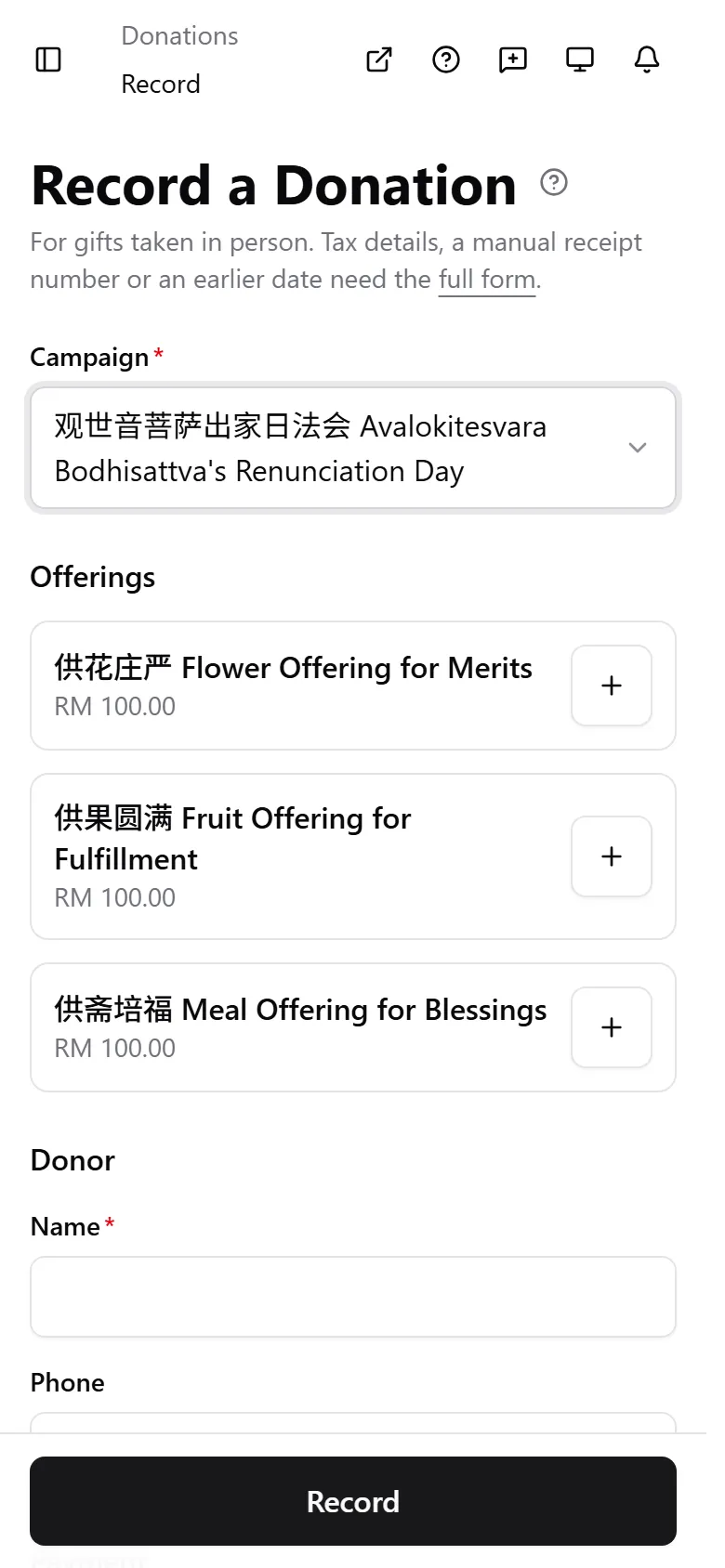
-
Choose the campaign. Select Campaign. DonorCARE remembers your last choice on this device, so at a ceremony you pick it once.
-
Add the offerings, if it is a dharma event. An Offerings section lists each offering with a count. Select the plus button to add one and the minus button to remove one, then fill in the names each entry asks for. Amount (RM) follows the offerings until you type your own.
-
Enter the donor. Under Donor, enter Name (required) and Phone. If a saved donor matches what you type, select them to fill in their phone and email. When the donor has an email on file, the form shows “Receipt goes to” that address.
-
Choose how they paid. Under Payment, select one Paid by button. Cash, DuitNow QR, E-Wallet and Bank Transfer come first, then the rest.
-
Check the amount. Amount (RM) is required, for example 50.00. On a dharma event, if you type an amount different from the offerings total, the form says the difference is “recorded as an adjustment”. Select Use offerings total to go back to the total.
-
Select Record. The button at the bottom shows the amount, for example Record RM50.00.
The page then shows Donation recorded with the amount, the donor and the receipt number. If your organization verifies payments by hand, it reads “Awaiting verification” and the receipt number is issued when someone verifies the payment. Select Record Another for the next gift (the campaign and payment method stay chosen), or View Donation to open the record.
If something goes wrong
Section titled “If something goes wrong”| What you see | What it means | What to do |
|---|---|---|
| The campaign is missing from the list | It is a draft or has ended | Publish it first |
| “Enter an amount like 50.00” | The amount has letters or more than two decimals | Type it as 50 or 50.00 |
| “Enter the donor’s name” | Name is empty | Type a name |
| The save did not go through | The connection dropped | Read the message on screen and select Record again. Do not start a new entry first |
Related
Section titled “Related”Screenshots use sample data. Every screen on this page is captured against a demo organization seeded with generated donors, amounts, receipt numbers and campaigns. Any resemblance to a real person or organization is coincidental.