

Import donations in bulk
Uploading a CSV files a batch of past or offline gifts against one campaign in one go, instead of typing them in one at a time.
Before you start
Section titled “Before you start”- The campaign must be Published — a draft or completed campaign is not offered as a target.
- Every row you upload is filed as a Completed donation, whatever your spreadsheet says about it. This tool is for gifts you already know were received; it isn’t a way to bulk-load pending or failed attempts.
-
Open Donations, then select All Donations, then select Bulk Upload.
-
Choose the campaign and download the template. The template’s columns are:
amountanddonor_name(required), plusdonor_email,donor_phone,payment_method,payment_date,payment_verified,reference_number,internal_notesanditem_id(all optional — a blankitem_iduses the campaign’s first item automatically).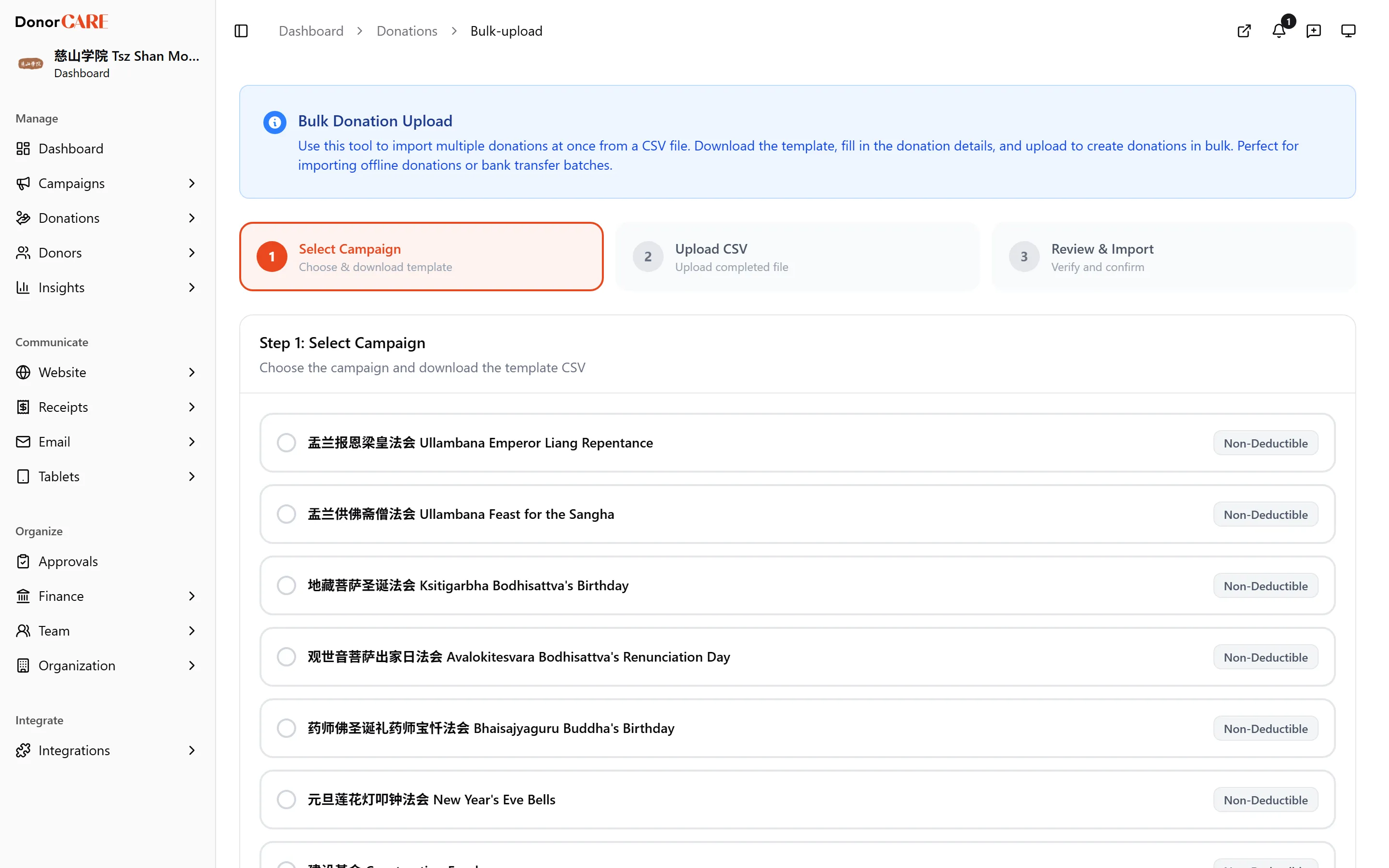
-
Fill in the spreadsheet. Two things silently go wrong here more than anything else:
- Amounts must be plain numbers, with no thousands separator.
1234.50is read correctly;1,234.50is read as1— the importer stops at the first comma without any warning. - Dates must be
YYYY-MM-DD(for example2026-01-15). A date your spreadsheet reformatted into something else — US-style1/15/2026, or a value that got turned into a raw serial number — is refused rather than misread, but you’ll only see it as one of the rows in the failed count, not called out by name. Keep thepayment_datecolumn formatted as plain text before you type into it.
- Amounts must be plain numbers, with no thousands separator.
-
Upload the CSV. Files must be under 5MB, and a single upload takes up to 3,000 rows — split a larger backlog into more than one file.
-
Review the validation summary. Rows marked with an error will not import; rows marked with a warning still will. Fix the errors in your spreadsheet and re-upload if you’d rather they went in too.
-
Select Import. Rows import independently — one bad row doesn’t stop the rest.
The confirmation shows how many donations imported and their total. If the final count is lower than what the review screen showed, some rows failed a check the on-screen review doesn’t run (an identity-number length limit, or a date the server still couldn’t parse) — open Find a donation and search by campaign to see exactly what landed.
A donor is matched by email only: if the email already exists, the gift is linked to that donor’s existing profile; if not, a new one is created. Leave donor_email blank and the name and phone are still stored on the donation, just without a linked donor account.
If something goes wrong
Section titled “If something goes wrong”| What you see | What it means | What to do |
|---|---|---|
| “amount must be a positive number” | The amount is blank, zero, or negative | Fix the amount in your spreadsheet — negative amounts are never accepted |
| “Too many donations. Maximum 3000 allowed…” | The file has more rows than one upload allows | Split the file and upload it in batches |
| The imported total is lower than what Review showed | Some rows failed a check the browser can’t run before upload | Search the campaign in Find a donation to see what actually landed, and re-import only what’s missing |
Related
Section titled “Related”Screenshots use sample data. Every screen on this page is captured against a demo organisation seeded with generated donors, amounts, receipt numbers and campaigns. Any resemblance to a real person or organisation is coincidental.