

Record an offline donation
Recording a cash, cheque or bank-in gift by hand puts it alongside your online donations, with its own receipt and its own place in your reports.
Before you start
Section titled “Before you start”- The campaign must be Published. A draft or completed campaign will not appear in the campaign list — publish it first, or reopen it if it has already ended.
- Know the date the money actually moved. DonorCARE reports every figure by that date, not the date you happen to be typing the entry, so getting it right matters more than getting it typed quickly.
-
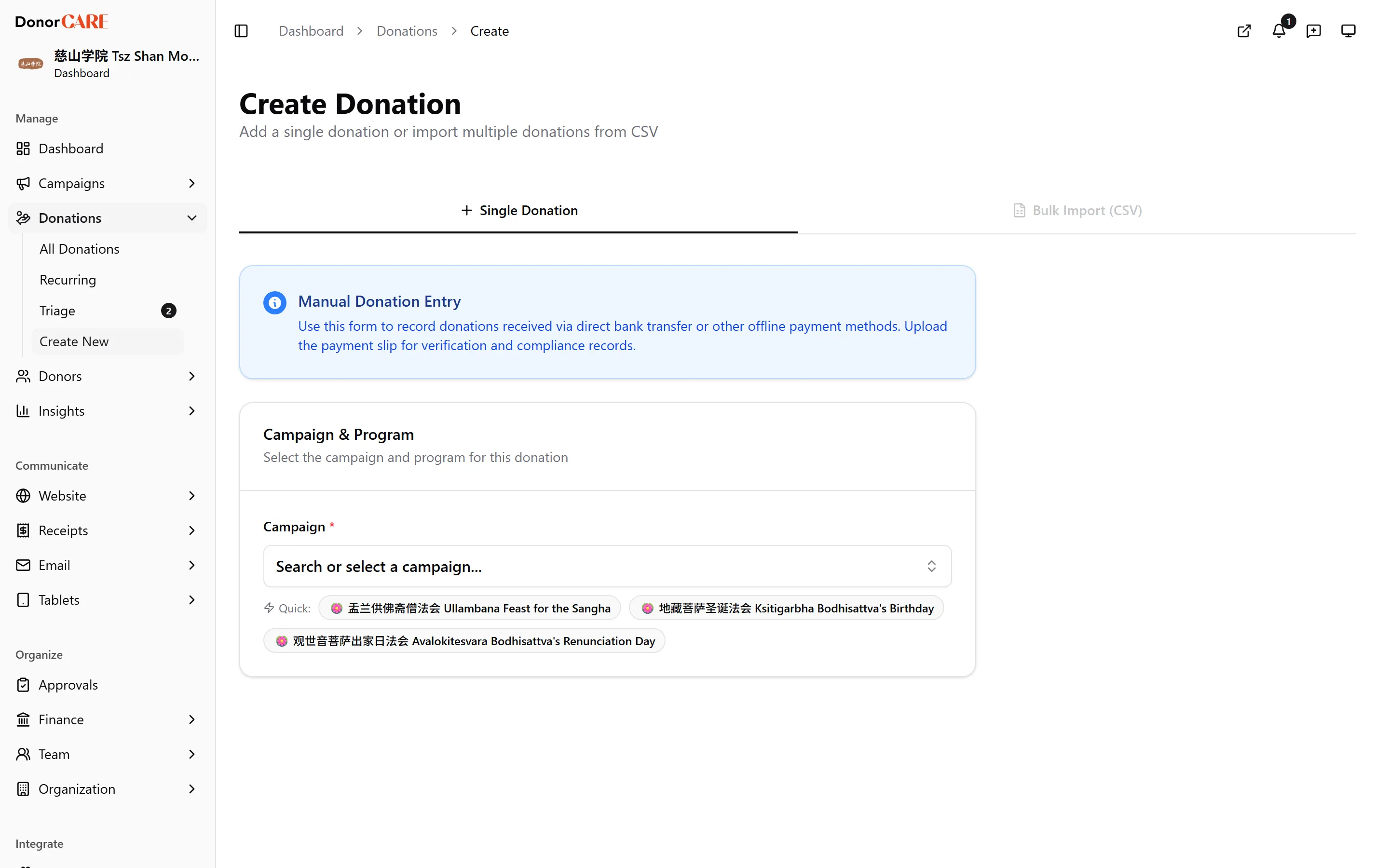
Open Donations, then select Create New. You can also select Add Donation from the All Donations list.
-
Choose the campaign. Only published campaigns are offered. If the campaign has a Program/Item set up, pick the one this gift belongs to — it defaults to the first item if you leave it blank.
-
Enter the amount and the donor’s name. These are the only two fields DonorCARE insists on. Use Search existing donor to find someone by name, phone, email, TIN or IC number and pull in their saved details, or just type in a new donor’s name, email and phone yourself — DonorCARE creates their record for you.
-
Set the payment method and payment date. Payment Method covers Bank Transfer, Cash, Check/Cheque, FPX, Credit/Debit Card, DuitNow QR and E-Wallet. Payment Date defaults to today, but you can enter any earlier date.
 Money is bucketed on the date you enter here, not the date you save the record. Back-date a gift to a month that has already closed for numbering, and DonorCARE tells you: the receipt is still minted from the current month’s number block, but the gift date itself is recorded exactly as you typed it — so a September gift entered in October shows up in September’s totals, with an October-numbered receipt.
 -
Upload the payment slip. Attach the bank-in slip or cheque image (PNG, JPG or PDF, up to 5MB each, up to 5 files) so there is something to check the amount against later.
-
Select Create Donation. If your organisation uses e-invoicing, or lets staff type in a receipt number by hand, a confirmation step appears first — otherwise the donation saves immediately.
You land on the new donation’s own page. If your organisation auto-verifies manual donations (the default), it is already marked Completed with a receipt number. If not, it saves as Pending until someone verifies the payment slip from that same page.
If something goes wrong
Section titled “If something goes wrong”| What you see | What it means | What to do |
|---|---|---|
| The campaign you want isn’t in the list | It is still a draft | Publish the campaign, then come back and record the donation |
| “…is completed and no longer accepts new donations” | The campaign has been marked completed | Check you picked the right campaign — if the gift really belongs there, reopen the campaign, record it, then mark it completed again |
| The donation stays “Pending” after saving | Auto-verify is switched off for your organisation | Open the donation and verify the payment before it counts as completed |
Related
Section titled “Related”Screenshots use sample data. Every screen on this page is captured against a demo organisation seeded with generated donors, amounts, receipt numbers and campaigns. Any resemblance to a real person or organisation is coincidental.