

Void or refund a donation
Voiding corrects your own records. It never moves money — DonorCARE has no separate “refund” button, because sending money back happens at the bank or the payment gateway, not inside DonorCARE.
The two situations, and what to do in each
Section titled “The two situations, and what to do in each”Void when
- You recorded the wrong amount, the wrong donor, or a duplicate entry.
- A pledge or manual entry was marked completed but should never have been.
- The gift itself is fine, but the record of it is wrong.
Don’t void to represent a refund
- If a donor’s online payment was actually reversed by the gateway after the receipt was already issued, DonorCARE flags it for you automatically — see below. Voiding on top of that flag is a separate decision, not the same action.
- Voiding does not send money anywhere. If you already need to return funds, do that at the bank or gateway first; voiding only updates your books afterwards.
What voiding actually does
Section titled “What voiding actually does”Only a Completed donation can be voided. Once voided:
- It is removed from every total and report. It cannot be un-voided.
- If it had an e-invoice that LHDN has not yet validated, DonorCARE cancels it for you automatically. If LHDN already validated it, the donation is locked — you cannot void it at all until that’s resolved with LHDN directly. If the e-invoice was submitted more than 72 hours ago, voiding is also blocked until you cancel the e-invoice with LHDN first.
- The donor’s receipt link stops working. Anyone who already downloaded a copy still has that file, but the link in their receipt email no longer serves it.
- Any reserved slot or name it held on the campaign (an offering item, a tablet name) is released back for someone else.
What a gateway refund looks like instead
Section titled “What a gateway refund looks like instead”When a donor’s card payment or FPX transfer is reversed by the payment gateway after a receipt has already gone out, DonorCARE does not change the donation’s status on its own — it stays Completed and stays in your totals, because DonorCARE cannot itself move the money back. Instead, it lands in the triage queue with a note that the payment was reversed after the receipt was issued, so a person decides what happens next — including whether to void it once you’ve confirmed the money is genuinely gone.
Steps to void a donation
Section titled “Steps to void a donation”-
Open the donation from Find a donation.
-
Select Void Donation. Type a reason — this is required and goes into the record.
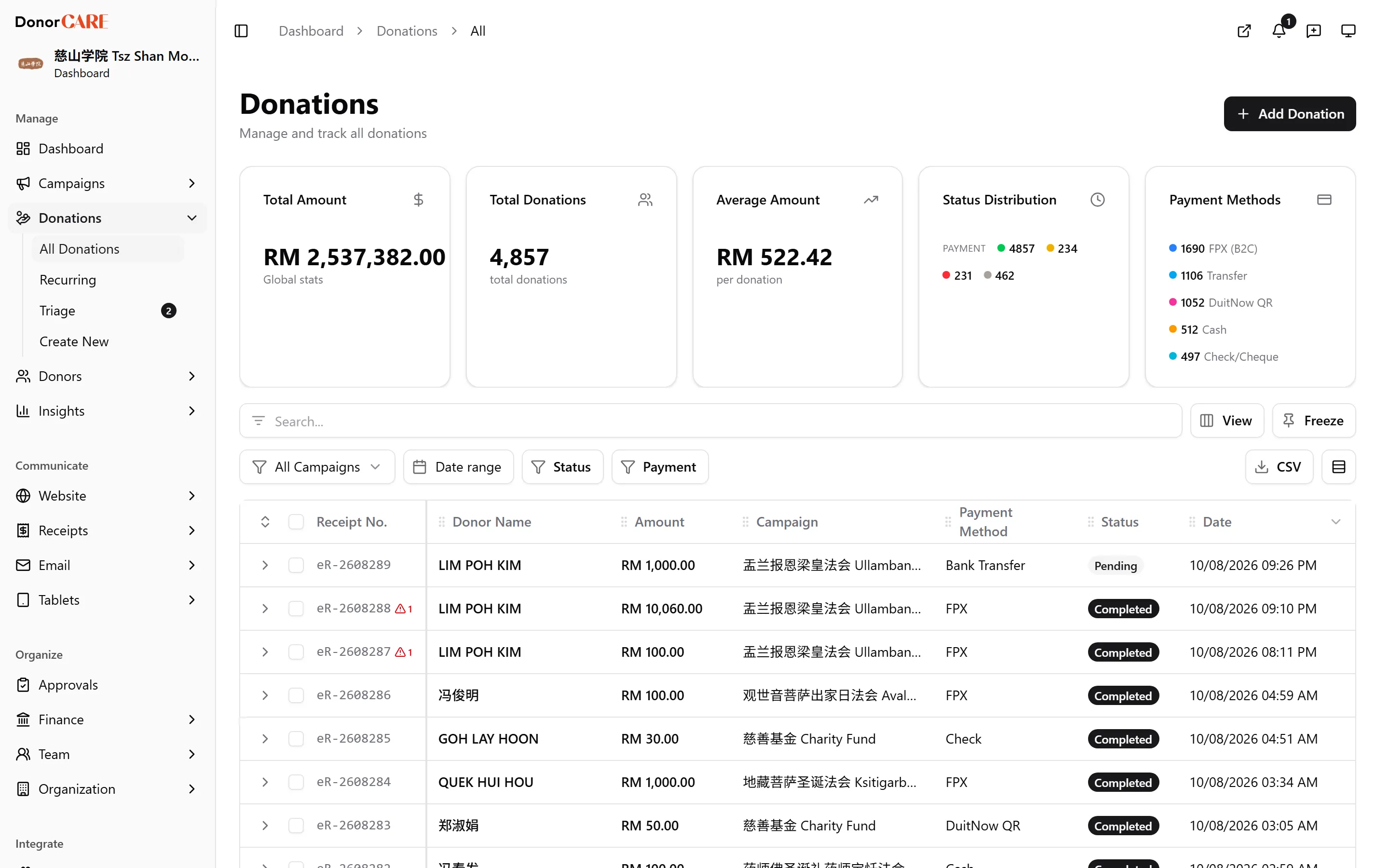 3. Confirm. If your organisation has turned on void approvals (off by default), or if you are an Admin rather than an Owner or Finance member, this submits a request instead of voiding immediately — an Owner or Finance member has to approve it before anything changes. See Set up approvals.
Once approved (or immediately, if no approval is required), the donation shows as Voided with your reason attached.
If something goes wrong
Section titled “If something goes wrong”| What you see | What it means | What to do |
|---|---|---|
| “This donation is locked because its e-invoice has been validated by LHDN” | LHDN has already validated the e-invoice | You cannot void it from DonorCARE — this needs to be resolved with LHDN directly first |
| “Cannot void: the associated e-invoice is past the 72-hour cancellation window” | The e-invoice was submitted more than 72 hours ago | Cancel the e-invoice with LHDN before voiding the donation |
| “Only completed donations can be voided” | The donation is Pending, Failed, Canceled or a Draft | There is nothing to void — edit or delete the record instead |
| “Donation is already voided” | Someone already voided it | No action needed |
| “Void request submitted for approval” | Approvals are on, or you voided as an Admin | Wait for an Owner or Finance member to approve it |
Related
Section titled “Related”Screenshots use sample data. Every screen on this page is captured against a demo organisation seeded with generated donors, amounts, receipt numbers and campaigns. Any resemblance to a real person or organisation is coincidental.