

Add or edit a donor
Add a donor before you have a donation to attach it to, or fix a donor’s details after the fact — both go through the same form.
Before you start
Section titled “Before you start”- If your organisation’s tax-exemption approval is active, creating a donor asks for their identity type, identity number and address up front, because those are required before you can issue a tax-deductible receipt to them. Otherwise, only name, email and phone are asked for.
- Editing a donor’s tax and identification fields — TIN, identity number, address — only appears when your plan includes MyInvois e-invoicing.
-
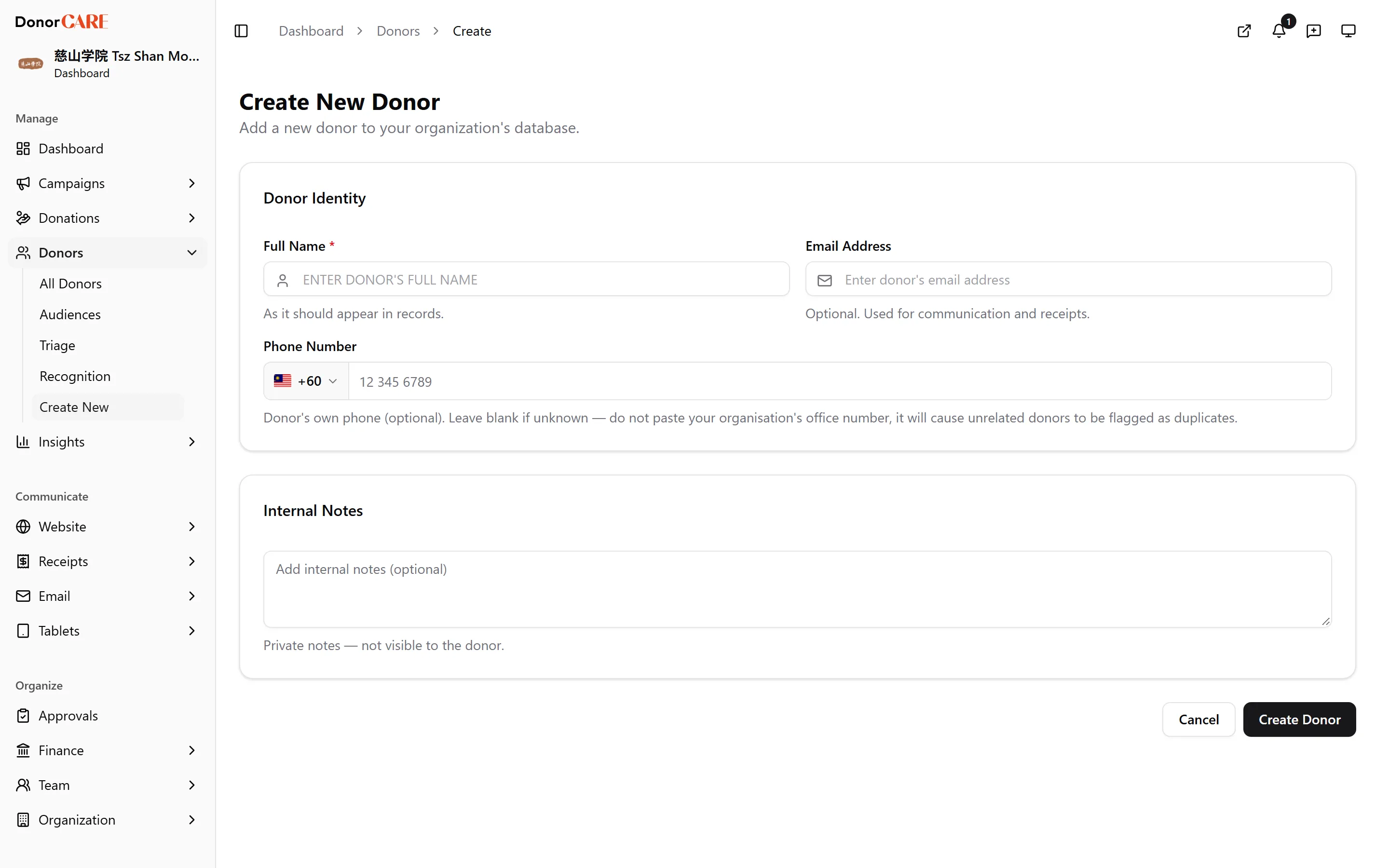
Open Donors, then select Create New (or Edit Donor from an existing donor’s profile).
-
Enter the donor’s Full Name. This is the only required field on a non-tax-deductible form. Enter it as it should appear in your records — DonorCARE stores it in capitals.
-
Add an email or phone number if you have one. Either is optional, but at least one makes this donor easier to find later and lets DonorCARE tell them apart from someone with the same name. Leave the phone number blank if you don’t know it — don’t enter your organisation’s own office number here, or unrelated donors will start showing up as possible duplicates of each other.
-
If your organisation issues tax-deductible receipts, fill in the identity fields. Choose the Identity Type (NRIC, Passport, Business Registration, or Army ID) and enter the matching Identity No. and address. Select Validate next to the TIN field to check it against LHDN before saving — a validated TIN and identity number lock against further edits, so change the Identity Type first if you need to correct one.
-
Add internal notes if useful. These are private to your organisation — the donor never sees them.
-
Select Create Donor (or Save Changes). You’re returned to the donor’s profile, and a toast confirms the save. If both the donor’s own fields and their tax profile changed, one confirmation covers both.
If something goes wrong
Section titled “If something goes wrong”| What you see | What it means | What to do |
|---|---|---|
| “Company TIN (C-prefix) requires Business Reg (BRN) identity type” | You’re validating a company TIN against an NRIC or another identity type. | Change Identity Type to Business Registration (BRN) before validating. |
| “Donor saved, but tax profile failed: …” | The donor’s name, email and phone were saved, but the tax fields were rejected. | Re-open Edit Donor, fix the flagged tax field, and save again — you won’t lose the fields that already saved. |
Related
Section titled “Related”Screenshots use sample data. Every screen on this page is captured against a demo organisation seeded with generated donors, amounts, receipt numbers and campaigns. Any resemblance to a real person or organisation is coincidental.