

Build an audience
An audience is a named group of donors you build by hand, so you can send one email campaign to exactly the people it’s meant for instead of everyone.
Before you start
Section titled “Before you start”- Build your donor list first, using the Donors table’s filters and search, so you know who you’re adding before you start.
-
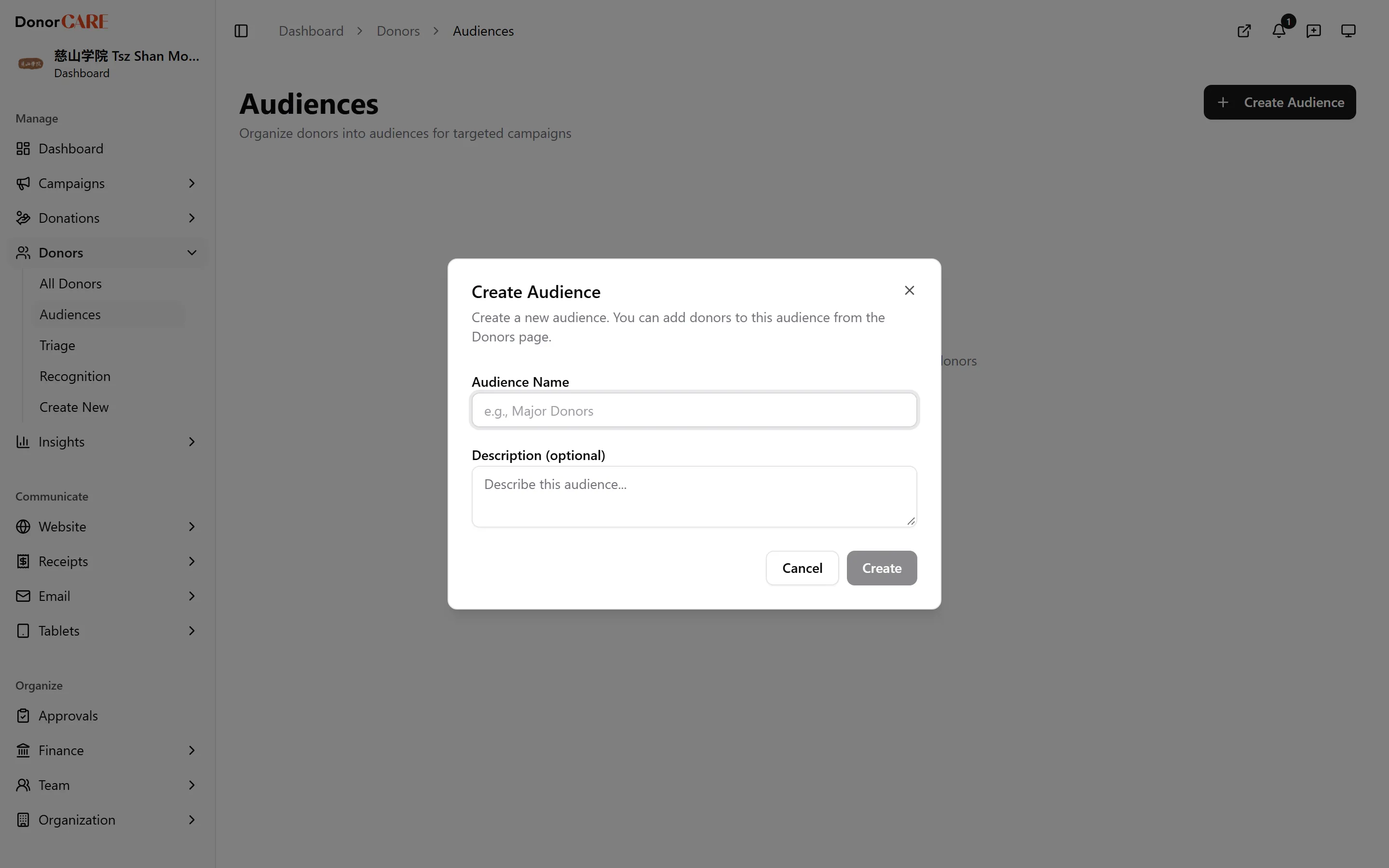
Open Donors → Audiences, then select Create Audience.
-
Give it a name and, optionally, a description. Name it for what it’s for — “Major Donors 2026” or “Ramadan appeal — lapsed” reads better later than “List 1”.
-
Select Create. The audience appears as an empty card, ready for members.
-
Go to Donors → All Donors, filter or search for the donors you want, then select them using the checkboxes.
-
Choose Add to Audience from the bulk actions, then select the audience you just created. A confirmation shows how many donors were added.
-
Repeat from a different filter to keep adding to the same audience, or create a separate audience for a different group.
Using an audience
Section titled “Using an audience”Once it has members, select it as the recipient list when composing an email campaign under Email. Membership doesn’t update itself as new donations come in — an audience is the list you built, not a live rule — so revisit it and add anyone new before you send to it again.
Related
Section titled “Related”Screenshots use sample data. Every screen on this page is captured against a demo organisation seeded with generated donors, amounts, receipt numbers and campaigns. Any resemblance to a real person or organisation is coincidental.