

Send an email campaign
Send a marketing email to your donors, from choosing your audience to the send itself.
Before you start
Section titled “Before you start”- This is separate from the automatic emails DonorCARE sends for you — receipts, recurring updates and the like. Those are covered in Edit an automatic email.
-
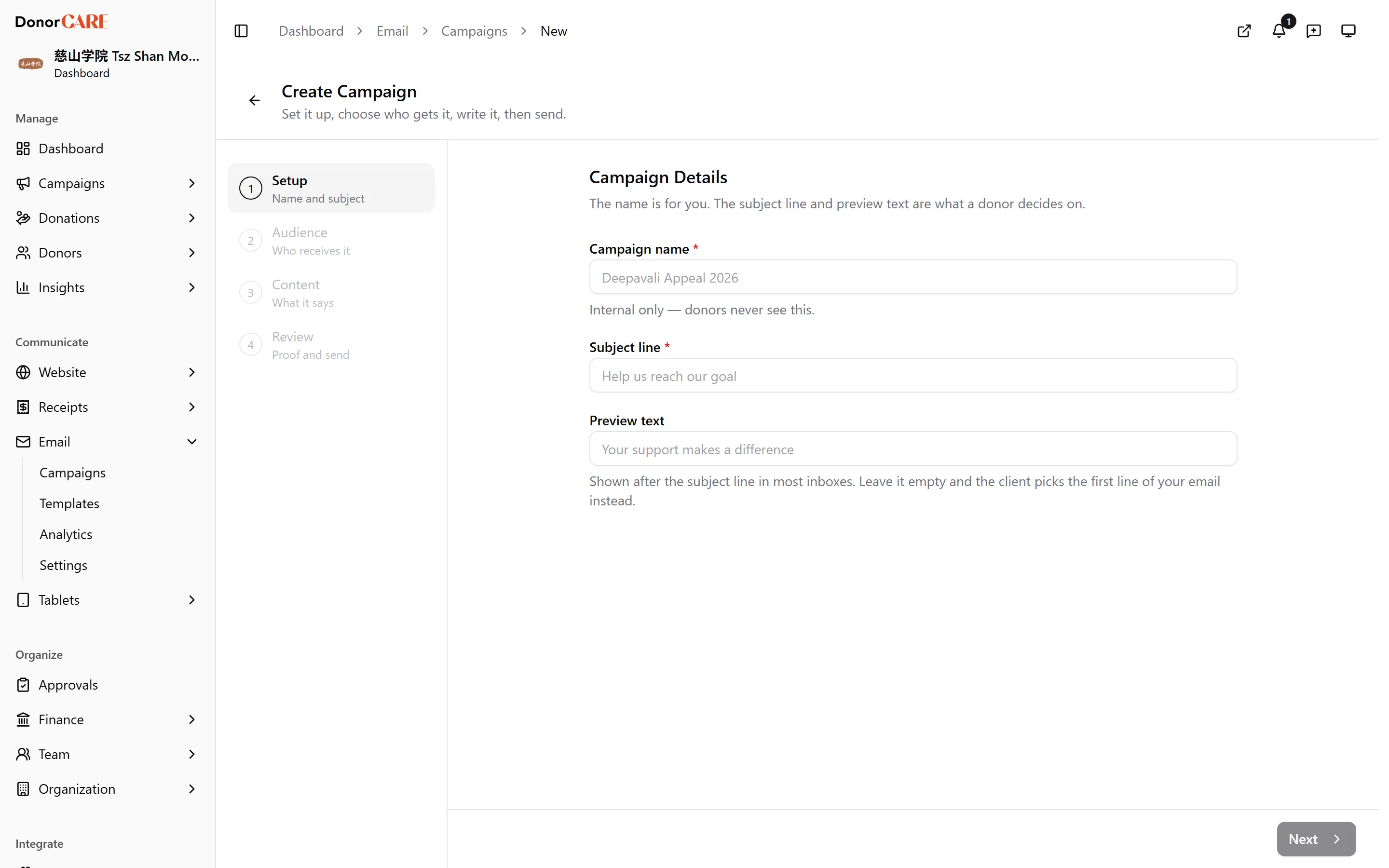
Open Email, then Campaigns, and select Create Campaign. This opens a four-step wizard: Setup, Audience, Content, Review.
-
Setup — name your campaign for your own records (donors never see it), and write the Subject line and Preview text donors do see in their inbox.
-
Audience — choose who receives it: All Donors, a saved Audience, Campaign Donors (everyone who gave to one fundraising campaign), or Test Email to send a single proof copy to yourself first.
-
Content — start from one of your saved designs, or write the HTML directly. The pane alongside shows exactly what a donor will see. DonorCARE adds a working unsubscribe link to every campaign automatically — you don’t need to build one into your design.
-
Review — check the recipient count and preview, then choose Send Now or Schedule for later under Delivery. See Schedule or cancel a send for scheduling.
-
Select Send Campaign (or Schedule Campaign). Sending starts immediately — there’s no confirmation step afterwards, so use Review to check everything first. Email cannot be recalled once it’s sent.
You land on the campaign’s page, and its status moves from Draft to Sending, then Sent once every recipient has been reached.
If something goes wrong
Section titled “If something goes wrong”| What you see | What it means | What to do |
|---|---|---|
| “No recipients found for this campaign” | Your chosen audience has nobody in it right now | Pick a different audience, or check your saved Audience still matches some donors. |
| Status is stuck on Sending for a while | A large audience sends in the background, in batches | Come back later — Sent or Failed follows once DonorCARE finishes reaching everyone. |
Related
Section titled “Related”Screenshots use sample data. Every screen on this page is captured against a demo organisation seeded with generated donors, amounts, receipt numbers and campaigns. Any resemblance to a real person or organisation is coincidental.