

Export your data
Every file in Finance → Exports answers a specific question about your money — this page tells you which one to reach for, what counts as “real money” in each, and how to run one.
Which export answers your question
Section titled “Which export answers your question”| Export | Answers | Format |
|---|---|---|
| Donation Report | “Show me every donation, one row each, with the donor attached.” | CSV |
| Receipt PDFs | “I need copies of every receipt issued in a month.” | ZIP of PDFs |
| Event Offering Breakdown | “How did each offering in this event total up?” | CSV |
| Monthly Summary | “What are this month’s totals by payment method, for the journal entry?” | CSV |
| SQL Accounting Import | “Give me official receipts my accounting software can import.” See Export to SQL Accounting. | ZIP |
| LHDN Individual e-Invoices, LHDN Consolidated e-Invoices | “What did we file with LHDN, and for whom?” (only shown if e-invoicing is on) | CSV |
| Full Data Export | “Give me everything this organisation holds.” | JSON |
-
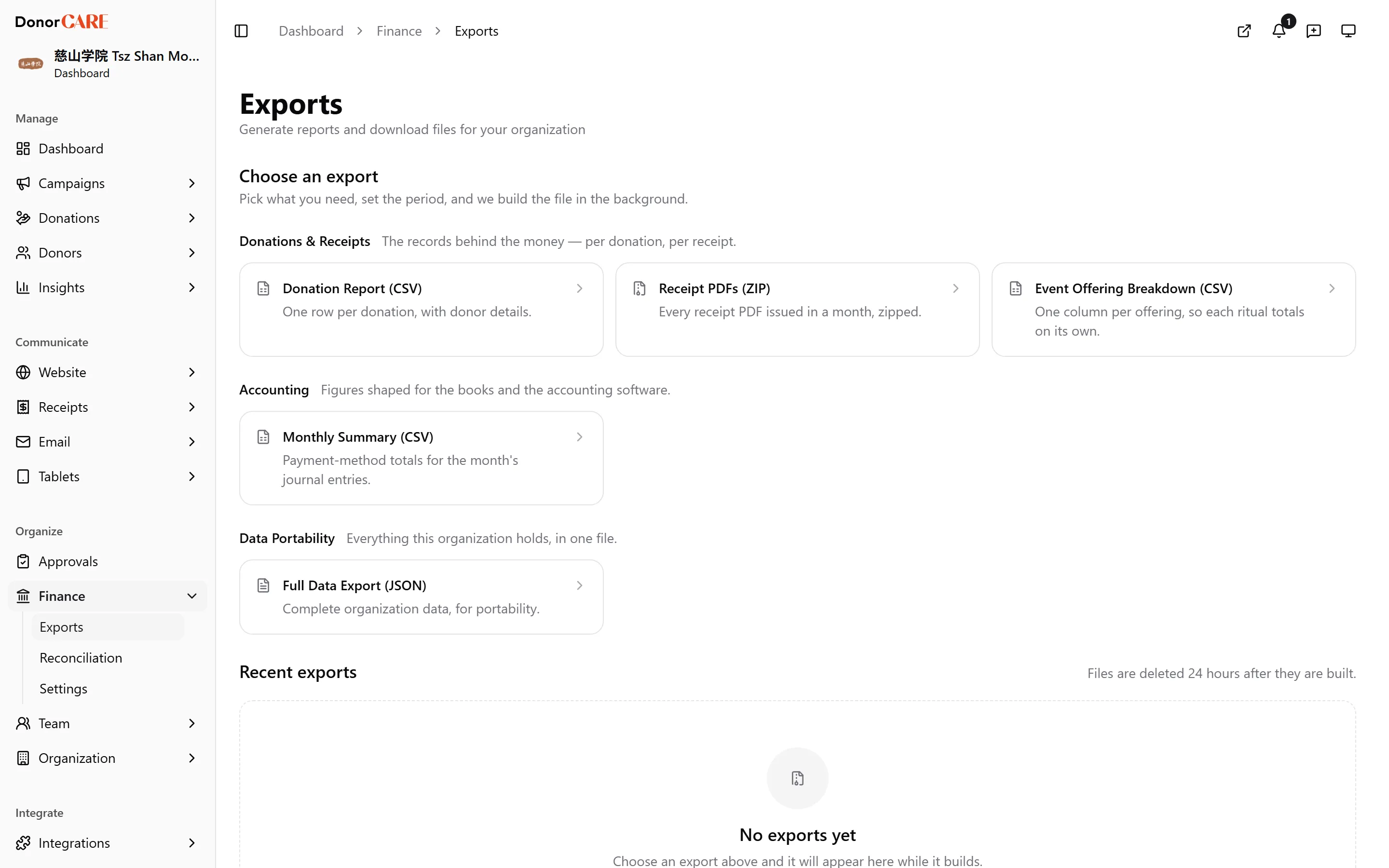
Open Finance → Exports.
-
Select the export you need, from the table above.
-
Set its period. Most exports take a date range or a month, with quick picks like Last 30 days, This month or Last month, plus a custom range. The Event Offering Breakdown asks for an event instead, and the Full Data Export has no period to set — it always covers everything.
-
Select Generate Export. The file is built in the background — you’ll see it queue, then show a build progress bar.
-
Download it once it says Ready. Files are removed 24 hours after they’re built, so download promptly — you can always generate the same export again.
What counts, and what doesn’t
Section titled “What counts, and what doesn’t”Every organisation starts with a handful of sample donations — invented example data so the account isn’t empty on day one — and every gateway supports test donations, made while you were still trying out checkout. Neither is real money, but they aren’t excluded the same way everywhere.
Do
- Expect the Donation Report, Monthly Summary, Event Offering Breakdown and SQL Accounting Import to leave test donations out on their own.
- Expect every export, including those four, to still include sample donations — nothing filters those out.
Don’t
- Assume Receipt PDFs or the Full Data Export exclude test donations — they don’t. A receipt made while testing can end up in the ZIP, and the Full Data Export is a raw, unfiltered copy of everything on purpose.
Watch for one more thing in any CSV you open in Excel or Sheets: a negative figure (a refund or an adjustment) that starts with a minus sign can be read as text rather than a number, and silently drops out of a SUM(). If a total on your side doesn’t match the file, check for a negative row first.
If something goes wrong
Section titled “If something goes wrong”| What you see | What it means | What to do |
|---|---|---|
| The job stays “Queued” for a long time | The build queue is busy, or the file is large | Leave the page open — it updates on its own — and try a shorter date range if it fails |
| Status turns “Failed”, mentioning a timeout | The date range was too large to build in time | Re-run it with a shorter range |
| A total doesn’t match your own count | The export uses a different date basis than you expect, or a negative row read as text | Check which date the export counts on (most use the cash date — see Read your dashboard), then check for a leading-minus-sign row |
Related
Section titled “Related”Screenshots use sample data. Every screen on this page is captured against a demo organisation seeded with generated donors, amounts, receipt numbers and campaigns. Any resemblance to a real person or organisation is coincidental.