

Set donation controls
Donation Controls sets your organisation-wide minimum gift amount, along with how manual donations get verified and who can approve a void.
-
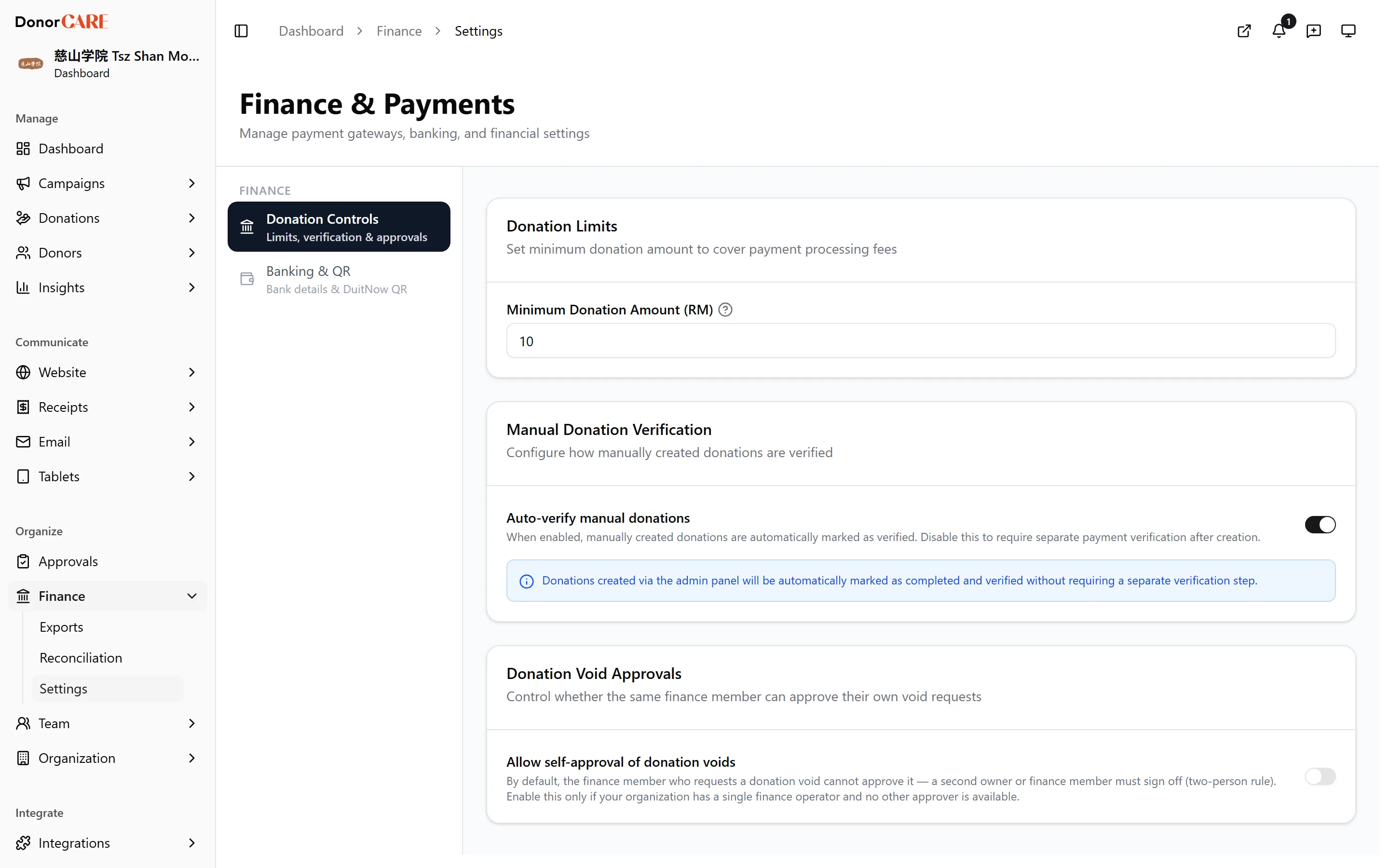
Open Finance → Settings, and select the Donation Controls tab.
-
Set a Minimum Donation Amount (RM), if you want one. Leave it blank for no minimum. This raises the floor specifically for flexible-priced offering and ritual rows, where a donor or staff member can otherwise type in any amount — it doesn’t lower the platform’s own minimum on an ordinary donation, which is fixed regardless of this setting.
-
Choose whether manual donations auto-verify. Turning on Auto-verify manual donations skips a manual review step for donations staff key in themselves.
-
Decide who can approve a donation void. Allow self-approval of donation voids lets the person who requests a void also approve it; leave it off to require a second person.
-
Select Save.
What this means in practice
Section titled “What this means in practice”Do
- Use the minimum amount to stop a flexible offering or ritual row from being left at RM0 or a token amount by mistake.
Don’t
- Rely on this setting to raise the minimum on your general donation checkout — that has its own fixed floor, unaffected by what you set here.
If something goes wrong
Section titled “If something goes wrong”| What you see | What it means | What to do |
|---|---|---|
| A donor’s ordinary donation still goes through below your minimum | Donation Controls only raises the floor on flexible-priced offering and ritual rows | This is expected — the general checkout has its own separate, fixed minimum |
| Save doesn’t seem to apply | You may not have permission to change organisation settings | Ask an Owner, Admin or Finance team member to make the change |
Related
Section titled “Related”Screenshots use sample data. Every screen on this page is captured against a demo organisation seeded with generated donors, amounts, receipt numbers and campaigns. Any resemblance to a real person or organisation is coincidental.