

Customise your receipt template
An Owner can change which roles have this in Account Access.
Design what your receipts look like — layout, wording and which donation details appear where — using DonorCARE’s built-in template editor.
Before you start
Section titled “Before you start”- This is a code-level editor: it edits the receipt’s HTML and CSS directly, with a live preview, rather than a simple logo-and-colour form. If you’d rather not touch markup yourself, start from the default template and change only the branding fields under its General tab.
- Decide whether you’re editing your organisation’s one Primary template or creating a second one for a specific purpose (a Dharma event template needs its own ceremony grid, for instance).
-
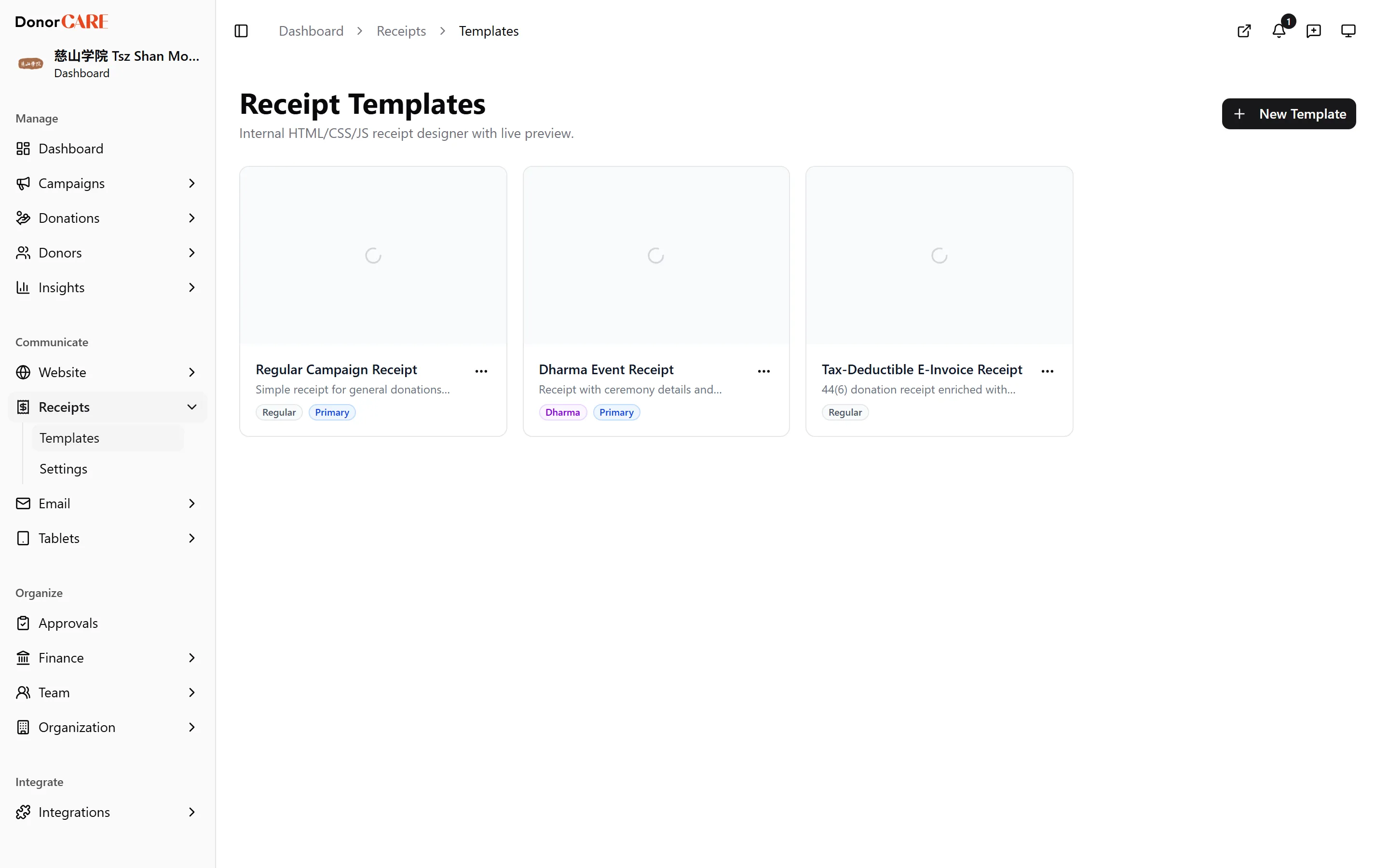
Open Receipt Templates. In DonorCARE, open Receipts, then select Templates.
-
Create or open a template. Select New Template and give it a name, or select an existing one from the list to edit it.
-
Edit the branding basics. In the General tab on the right, adjust branding, the tax-deductible badge and which elements are visible — this covers most changes without touching code.
-
Edit the layout, if you need to. Use the HTML, CSS and JS tabs on the left for anything beyond branding — the live preview updates as you type.
-
Check your field mappings. The Fields tab lists every
{{variable}}your template can print — donor name, amount, receipt number and more — each pointing at the data it pulls from the donation. -
Preview with sample data. Use the Sample tab to check how the template renders before it reaches a real donor.
-
Make it the one your receipts use. From the templates list, open the row menu and select Set Primary — this becomes the template every new receipt uses, unless a campaign specifies a different one.
If something goes wrong
Section titled “If something goes wrong”| What you see | What it means | What to do |
|---|---|---|
| Delete is greyed out | You can’t delete your Primary template | Set a different template as Primary first, then delete the one you no longer need |
| The preview doesn’t match what donors are receiving | You’re editing a template that isn’t Primary, or a campaign is overriding it with a different one | Check which template is marked Primary, and whether the campaign uses its own override |
Related
Section titled “Related”Screenshots use sample data. Every screen on this page is captured against a demo organisation seeded with generated donors, amounts, receipt numbers and campaigns. Any resemblance to a real person or organisation is coincidental.