

Generate tablets
Turn the names donors have registered into print-ready PDF pages, and keep track of which pages have actually gone to print.
Before you start
Section titled “Before you start”- The offering’s tier needs a tablet template assigned — see Design a tablet template. Without one, the generator shows “No template is assigned to this tier.”
- At least one registration needs to exist on that tier. An empty tier shows “No pages yet.”
-
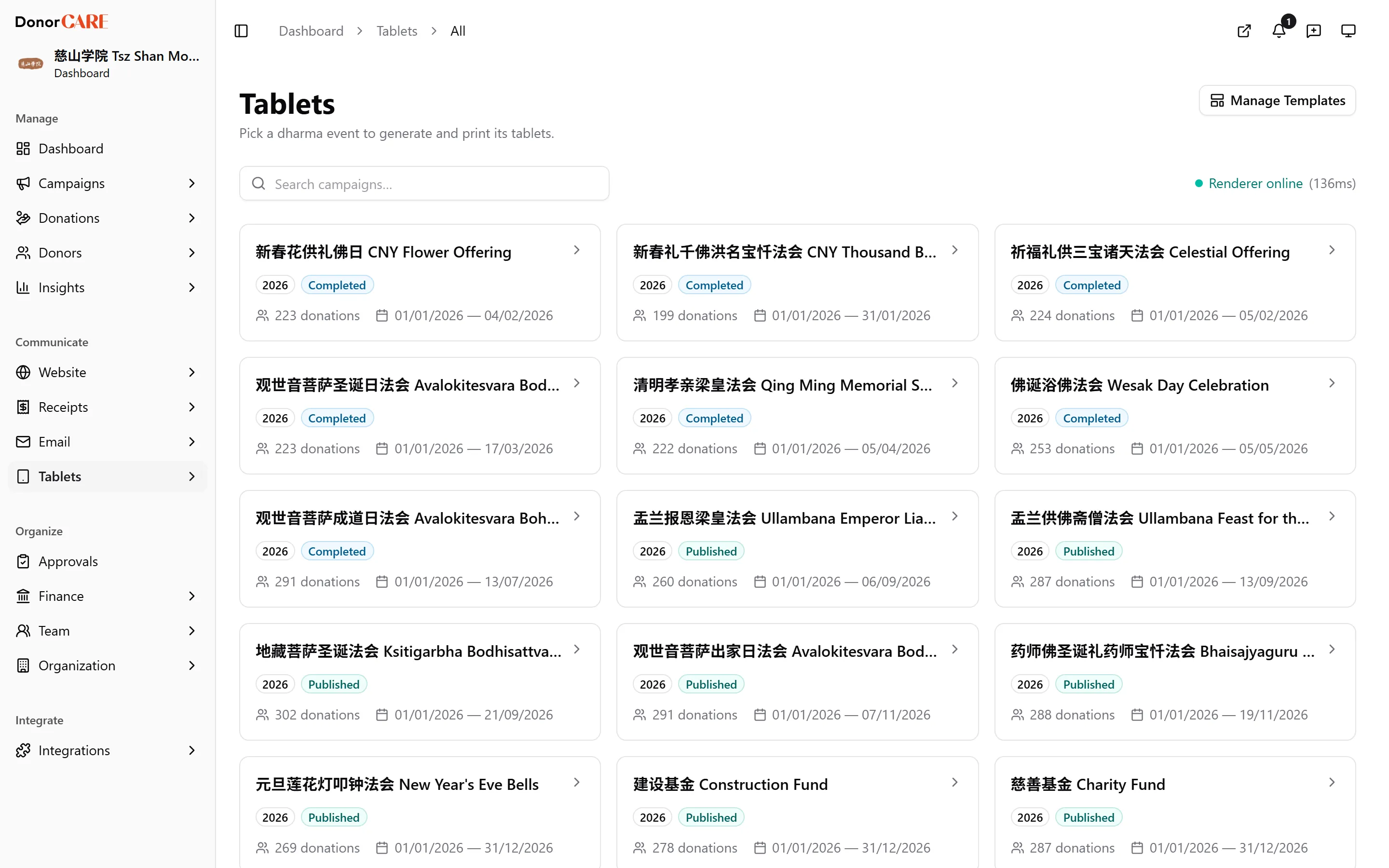
Open the offering you want to print. In Tablets, choose the campaign, then select the offering and tier to open its generator.
-
Check the run summary. The header shows the template in use, the total number of names, the total number of pages, and the grid (for example, 5×10 names per page). If a bundle tier prints on more than one template, a selector lets you switch between its parts.
-
Generate the pages that still need printing. Select Generate Unprinted to download every page that isn’t fully printed yet as one or more PDFs. A run of more than about 20 pages downloads as several files — the button tells you how many before you start. You can also tick individual pages and select Download PDF for just those.
-
Print at 100%, not “fit to page.” In the print dialog, set Scale to 100%, paper size to A4, and margins to None. These sheets are cut apart and pasted onto pre-printed stock — any scaling shifts every name off its frame, and the shift is invisible on screen.
-
Mark pages printed as you paste them up. Once a page is physically pasted onto the display, select Mark Printed on that row, or use Mark printed through here to mark everything up to and including the page you’ve reached in one action, since the pages are pasted in order.
-
Print an Addendum pack for names that arrived too late. If a correction or a late registration lands on a row before the last page you’ve already printed, it can no longer reprint into its original spot — that page is glued down. DonorCARE collects only those stranded rows into a separate Addendum pack tab, repacked with its own page numbers starting from 1. It is not “everything unprinted” — a name further down the list than anything printed still prints on its ordinary page, not in the addendum. Download the pack’s own index sheet and paste it at the end of the display, then generate and print the pack the same way, finishing with Mark Pack Printed.
If something goes wrong
Section titled “If something goes wrong”| What you see | What it means | What to do |
|---|---|---|
| A page is stuck on Pending | No registration on that page has been generated yet | Select Generate Unprinted, or open the page and generate it individually |
| A page shows Partly printed | Some but not all of the names on that page have been marked printed — a page can be half-done even though one registration can’t be | Finish printing the remaining names on the page, then mark it |
| “No template is assigned to this tier” | The tier has no tablet template linked | Assign a template in the campaign’s offering settings |
| I need to reprint a page that’s already marked Printed | A printed page has already been cut and pasted — its position on the display is gone, so a straight reprint has nowhere to go | If names on it need correcting, the correction goes through the Addendum pack, not a reprint of that page |
Related
Section titled “Related”Screenshots use sample data. Every screen on this page is captured against a demo organisation seeded with generated donors, amounts, receipt numbers and campaigns. Any resemblance to a real person or organisation is coincidental.