

Set up approvals
DonorCARE can require a second person to sign off before a donation is voided — sometimes automatically, and sometimes because your organisation has asked for it.
Before you start
Section titled “Before you start”- This applies to voiding a donation. There is no plan requirement — every organisation can use it.
- Know that one part of this is automatic and needs no setup at all: read the first step before assuming you need to configure anything.
-
Know the automatic rule. If a team member whose only qualifying role is Admin tries to void a donation, DonorCARE always creates an approval request instead of voiding it immediately — whether or not your organisation has turned anything on. An Owner or Finance member voiding a donation is not affected by this rule.
-
Ask DonorCARE to require approval for every void, if you want it. Beyond the automatic Admin rule above, an organisation can require that every donation void — including ones started by an Owner or Finance member — goes through approval first. Turning this on for your organisation isn’t yet a self-service toggle inside Settings; contact DonorCARE to have it enabled.
-
Decide whether a single finance operator can approve their own request. By default, the person who requests a void cannot approve it — a second Owner or Finance member has to. If your organisation only has one finance operator, open Finance settings → Donation Void Approvals and switch on Allow self-approval of donation voids. Every self-approval is still recorded in the audit trail, and DonorCARE recommends adding a second approver instead if you can.
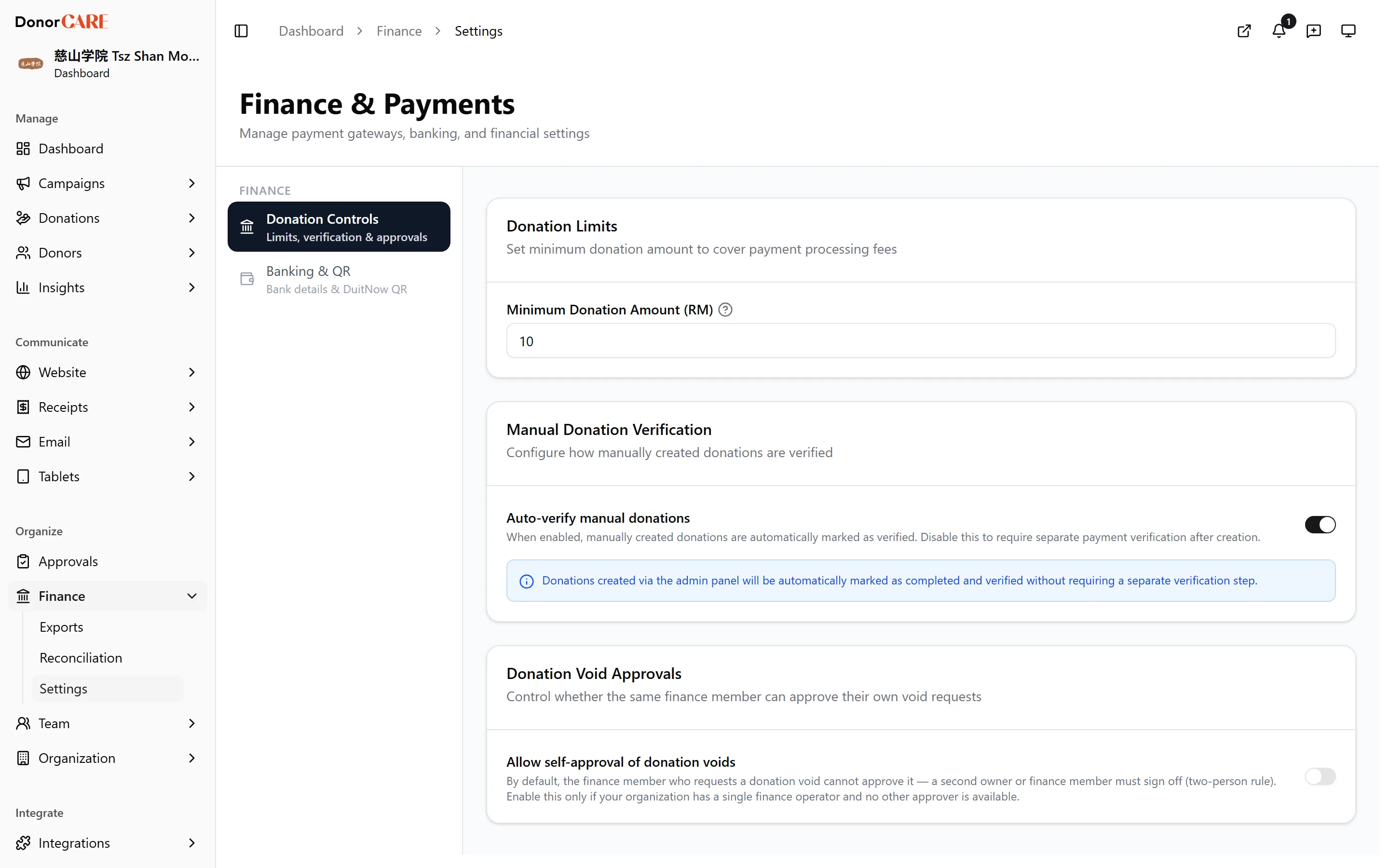
-
Know what the requester sees. When a void needs approval, the donation shows a Void request pending approval notice instead of voiding immediately, with the reason given and an Edit reason / Cancel request option. It stays this way — the donation is not voided — until someone decides it.
-
Decide a pending request. Open Approvals. Each pending request shows the donation’s amount, donor and the reason given. Select Approve to carry out the void, or Reject to leave the donation as it is — either way, add a comment if you want the requester to see your reasoning.
If something goes wrong
Section titled “If something goes wrong”| What you see | What it means | What to do |
|---|---|---|
| You try to void a donation and it doesn’t void, just shows “submitted for approval” | Either your organisation requires approval for all voids, or you hold only the Admin role. | Ask an Owner or Finance member to review it under Approvals. |
| You can’t find an Approve or Reject button on a request | Your role can see approvals but can’t decide them — only Owner and Finance members can. | Ask an Owner or Finance member to decide it. |
Related
Section titled “Related”Screenshots use sample data. Every screen on this page is captured against a demo organisation seeded with generated donors, amounts, receipt numbers and campaigns. Any resemblance to a real person or organisation is coincidental.