

Edit navigation and pages
Build the menu and footer donors use to get around your site, and keep the pages behind them — including the legal pages DonorCARE sets up for you — up to date.
-
Open Website, then Builder, then select the Navigation tab.
-
Under Header Navigation, select Add Link to add a menu item. Give it a label and choose where it goes — an internal page, a post, a campaign, or an external URL. Drag items to reorder them. Home, About Us, FAQ, Contact Us and Posts come built in and can be reordered but not removed.
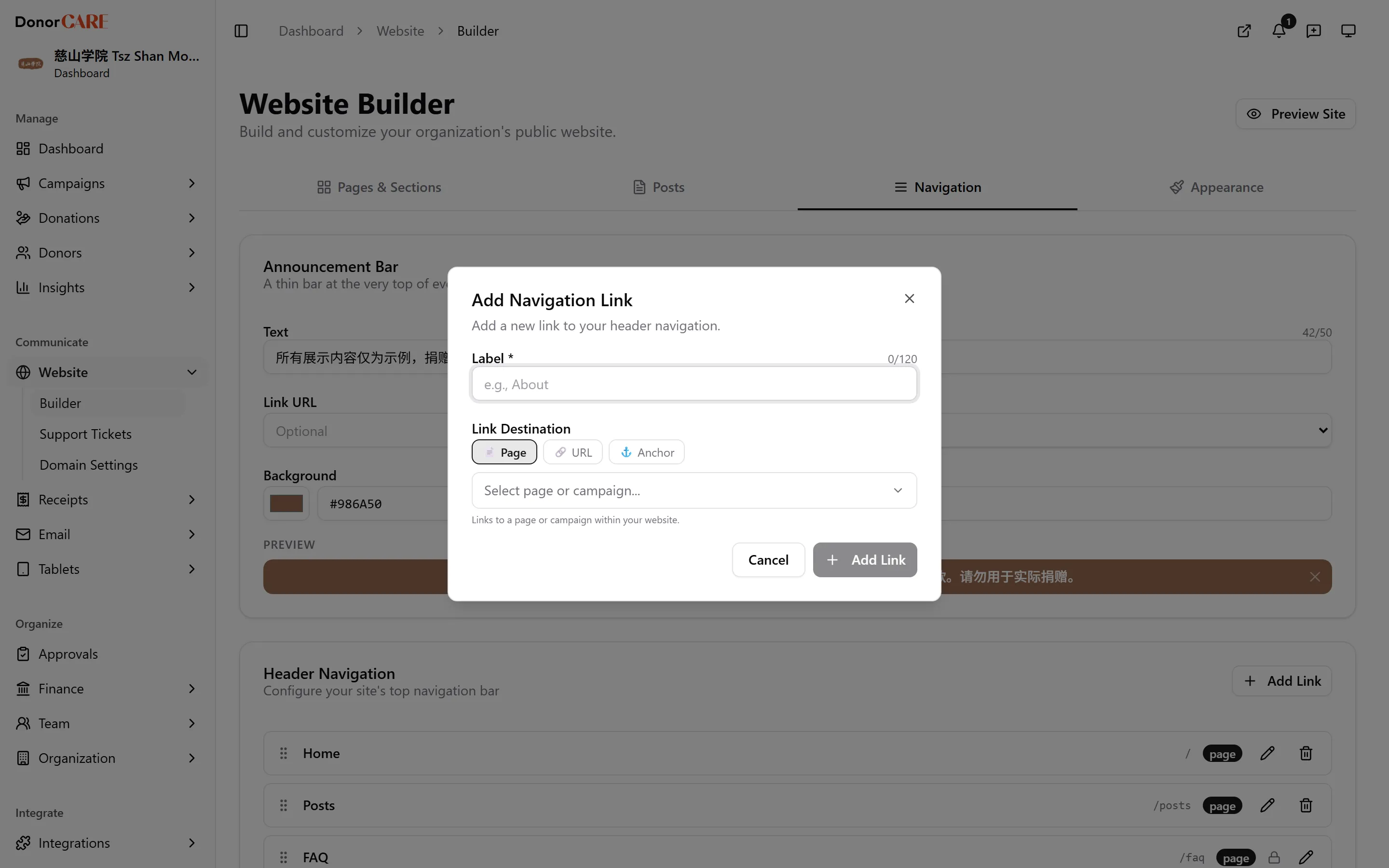
-
Turn on Announcement Bar if you want a banner across the top of every page — add its text, an optional link, and pick its colours.
-
Under Header Controls, choose what shows alongside your menu. Dark Mode, Cart and Account/login are on by default. Language Switcher is available if your organisation is registered as a religious organisation or clan association.
-
Under Footer, add columns and links the same way, and turn on the icons you want under Social Links — these use the addresses already on file in Organisation Settings → Profile.
-
Switch to the Pages & Sections tab to edit your static pages — About Us, Contact Us, FAQ, and the legal pages (Terms of Service, Privacy Policy, Donation Terms). Select the pencil icon next to a page to open Manage Sections, then Add Section to build it from blocks: Text Content, Contact Information, Contact Form, Board Members, Registration Details, Call to Action, and Image.
-
Save each section as you go, then Save Changes on the page. Legal pages carry locked clauses that keep your organisation compliant — you can add your own content above or below them, but the locked clauses themselves can’t be removed.
If something goes wrong
Section titled “If something goes wrong”| What you see | What it means | What to do |
|---|---|---|
| Part of a legal page won’t let you edit or delete text | That’s a locked compliance clause | Add your own content in a separate section instead — locked clauses stay as they are. |
| The FAQ page’s pencil icon opens something different from other pages | FAQ has its own dedicated manager | See Manage your FAQ. |
Related
Section titled “Related”Screenshots use sample data. Every screen on this page is captured against a demo organisation seeded with generated donors, amounts, receipt numbers and campaigns. Any resemblance to a real person or organisation is coincidental.