

Media library
Upload an image once and reuse it across campaigns, your public website, receipts and tablet templates, instead of uploading the same file over and over.
-
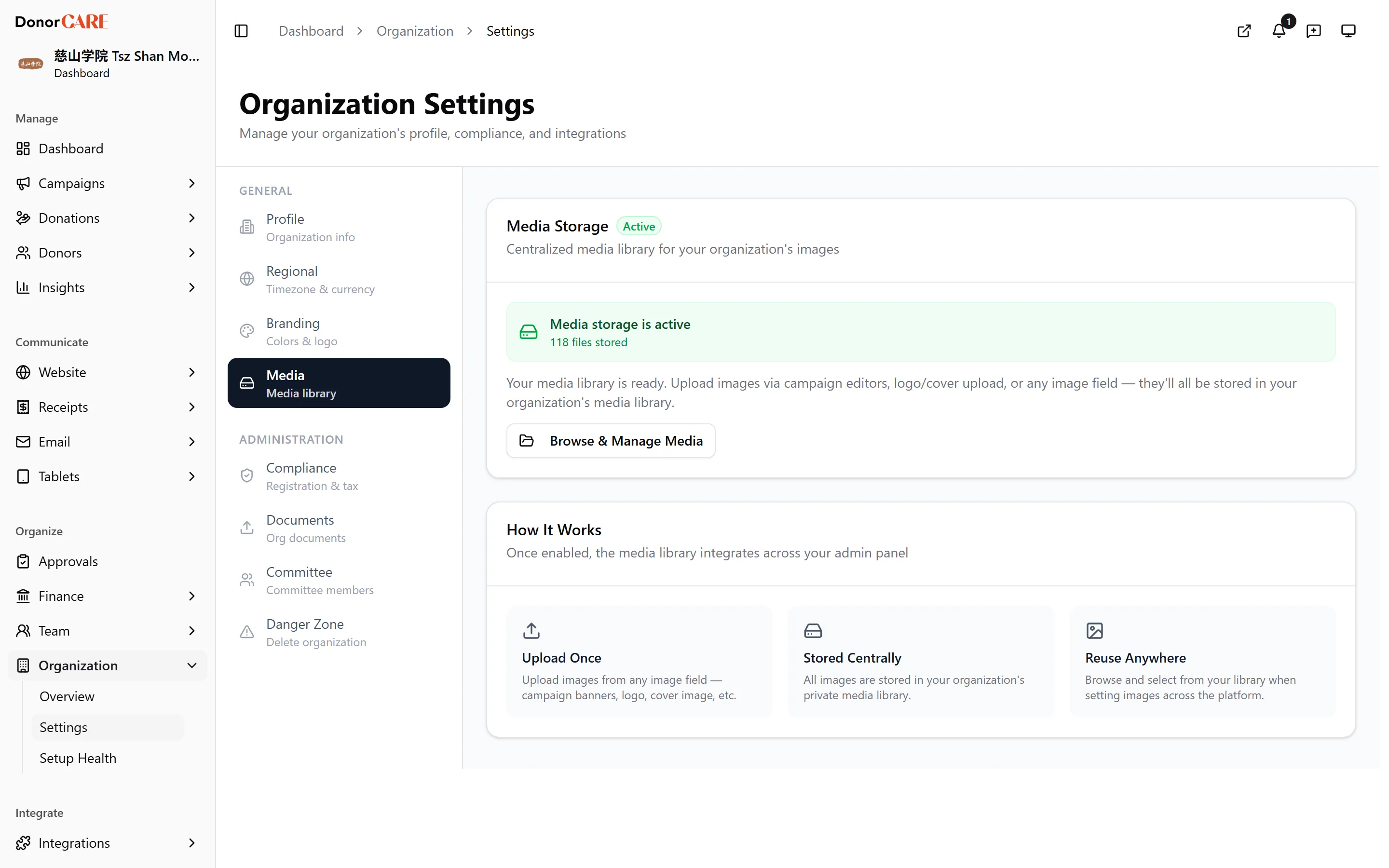
Open the media library from any image field. It’s built into every place that uses images — the campaign editor, the website builder, receipt templates, tablet templates, and Organization → Settings → Media. There’s no separate standalone library page; you open it from whichever feature needs an image.
-
Upload your file. Drag and drop, paste, or click to browse. DonorCARE accepts JPG, PNG, WebP, SVG and PDF files up to 10 MB each.
-
Find an existing file. Search by filename, or sort by Newest, Oldest or Size to browse what’s already there.
-
Select a file to use it. It’s inserted into whichever field you opened the library from — no need to download and re-upload.
-
Rename, download or delete a file from the file’s own menu when you no longer need it, or want to tidy up.
If something goes wrong
Section titled “If something goes wrong”| What you see | What it means | What to do |
|---|---|---|
| “File too large” | The file is over the 10 MB limit | Resize or compress the image and try again |
| A deleted file is still showing somewhere | Deleting a file from the library doesn’t remove it from content that already used it | Replace the image on that campaign, page or template directly if you need it gone everywhere |
Related
Section titled “Related”Screenshots use sample data. Every screen on this page is captured against a demo organisation seeded with generated donors, amounts, receipt numbers and campaigns. Any resemblance to a real person or organisation is coincidental.