

Add sponsorship items
What you add here depends on the campaign’s type: Regular Campaigns sell donation items, Dharma Events sell offerings with pricing tiers.
Before you start
Section titled “Before you start”- Know which mode the campaign is in — the Items tab looks and works differently for each. See Choose a campaign type.
Regular Campaign
Section titled “Regular Campaign”-
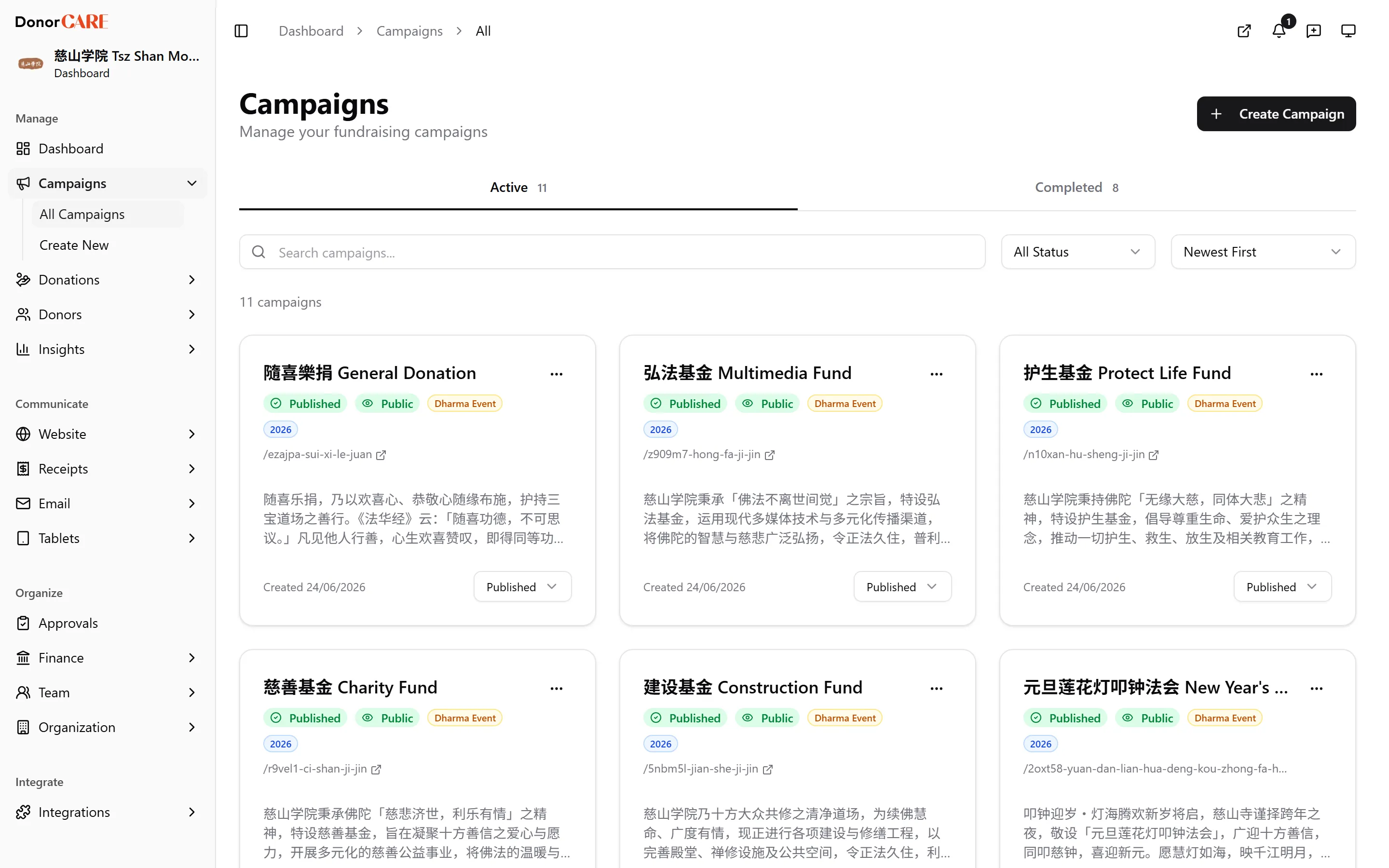
Open the Items tab and add an item. In DonorCARE, open the campaign, select the Items tab, then select Add First Item (or Add Another Item).
-
Name it and choose Donation Item Type. Give the item a name — for example “Bronze Package” or “VIP Ticket”. Choose Quantity-Based for a fixed price per unit with a set number of units available (for example, 100 Table & Chair Sets), or Amount-Based for a fundraising target that donors contribute towards.
-
Set the quantity cap or the target. A Quantity-Based item needs a Quantity Available — once every unit is claimed, donors can no longer select it — and a Price Per Unit. An Amount-Based item needs a Target Amount, plus its own donation amounts — see Set donation amounts.
Dharma Event
Section titled “Dharma Event”-
Open the Offerings tab and add an offering. Offerings are the categories donors sponsor — for example a blessing package or a memorial tablet offering.
-
Set its options. Turn on Bundle if it combines several offerings into one package. Turn on Open by Default to have it expanded on the public page automatically. Turn on Limited Qty to cap how many times the offering can be claimed in total — once that cap is reached, it shows as sold out.
-
Add pricing tiers, and set names per tablet. Each offering needs at least one tier (a price, fixed or flexible). On tiers that print a tablet, set how many donor names share one tablet slot — for example, one name per tablet, or a family sharing a single tablet. See Run a dharma event for the full ceremony setup.
If something goes wrong
Section titled “If something goes wrong”| What you see | What it means | What to do |
|---|---|---|
| “Maximum amount must be greater than minimum amount” | The item’s Max Amount is equal to or lower than its Min Amount | Raise the maximum, or leave it blank for no limit |
| Item fields are greyed out and locked | The item already has donations against it | Create a new item instead — pricing and type can’t change once money has moved |
| An offering or item shows as sold out | Its Limited Qty or Quantity Available cap has been fully claimed | Raise the cap, or leave it as is if you meant to close it |
Related
Section titled “Related”Screenshots use sample data. Every screen on this page is captured against a demo organisation seeded with generated donors, amounts, receipt numbers and campaigns. Any resemblance to a real person or organisation is coincidental.