

Invite a team member
Add a colleague to your organisation and get them a role that matches what they’ll be doing.
Before you start
Section titled “Before you start”- Know the colleague’s email address.
- Decide their role first — see Roles and permissions if you’re not sure which one fits.
- If your organisation’s team is managed centrally through JomCARE Accounts, invite from there instead — Account access shows a banner telling you so, with a link across.
-
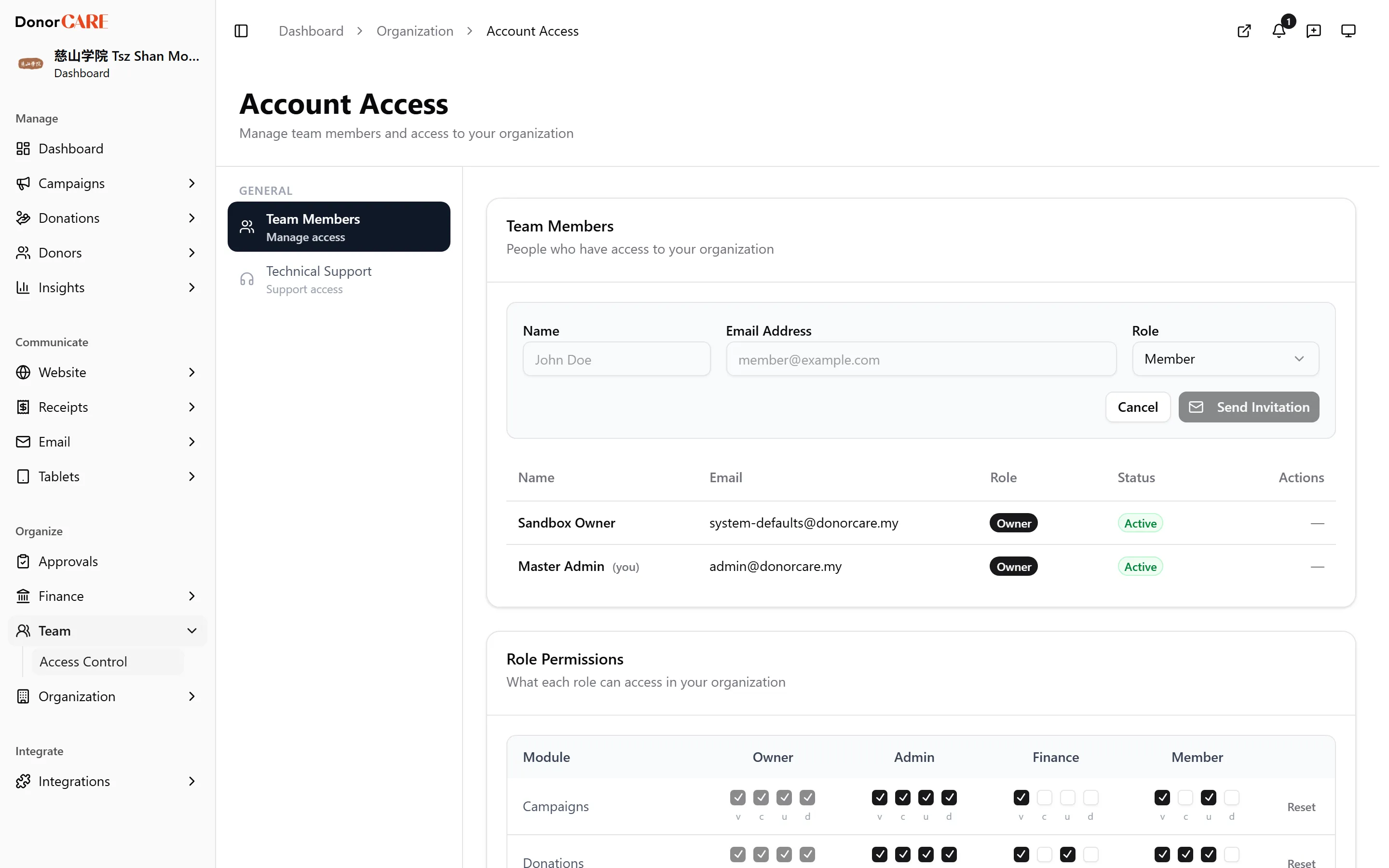
In DonorCARE, open Account access. Go to the Team Members section.
-
Select Invite Member. A form opens inline with Name, Email Address and Role fields.
-
Fill in their name, email address, and choose a role. You can invite someone as Admin, Finance or Member — Owner and Viewer aren’t offered here (a Viewer role is only assigned automatically, through a connected JomCARE hub).
-
Select Send Invitation. Your colleague receives an email with their invitation link. They appear in your Team Members list as a pending invitation until they accept it.
If something goes wrong
Section titled “If something goes wrong”| What you see | What it means | What to do |
|---|---|---|
| The invite form doesn’t appear at all | Your role doesn’t include inviting — only Owner and Admin can. | Ask an Owner or Admin to send the invitation instead. |
| Sending the invitation fails with a limit message | Your plan’s team-member allowance is full. | Remove an inactive member, or move to a plan with more seats — see Plans and what changes between them. |
| Your colleague says the invitation link failed | The invitation may already have been used, or has expired. | Send a new invitation from Account access. |
Related
Section titled “Related”Screenshots use sample data. Every screen on this page is captured against a demo organisation seeded with generated donors, amounts, receipt numbers and campaigns. Any resemblance to a real person or organisation is coincidental.