

Connect FormCARE
Link your FormCARE workspace to DonorCARE so a form you build in FormCARE can be attached to a campaign, and every submission is matched back to the donation that triggered it automatically.
Before you start
Section titled “Before you start”- You need your own FormCARE workspace and an API token from it. In FormCARE, go to Settings → API tokens to create one.
- FormCARE is a separate CARE product — connecting it here only links your organisation’s workspace; nothing is shared before you connect.
-
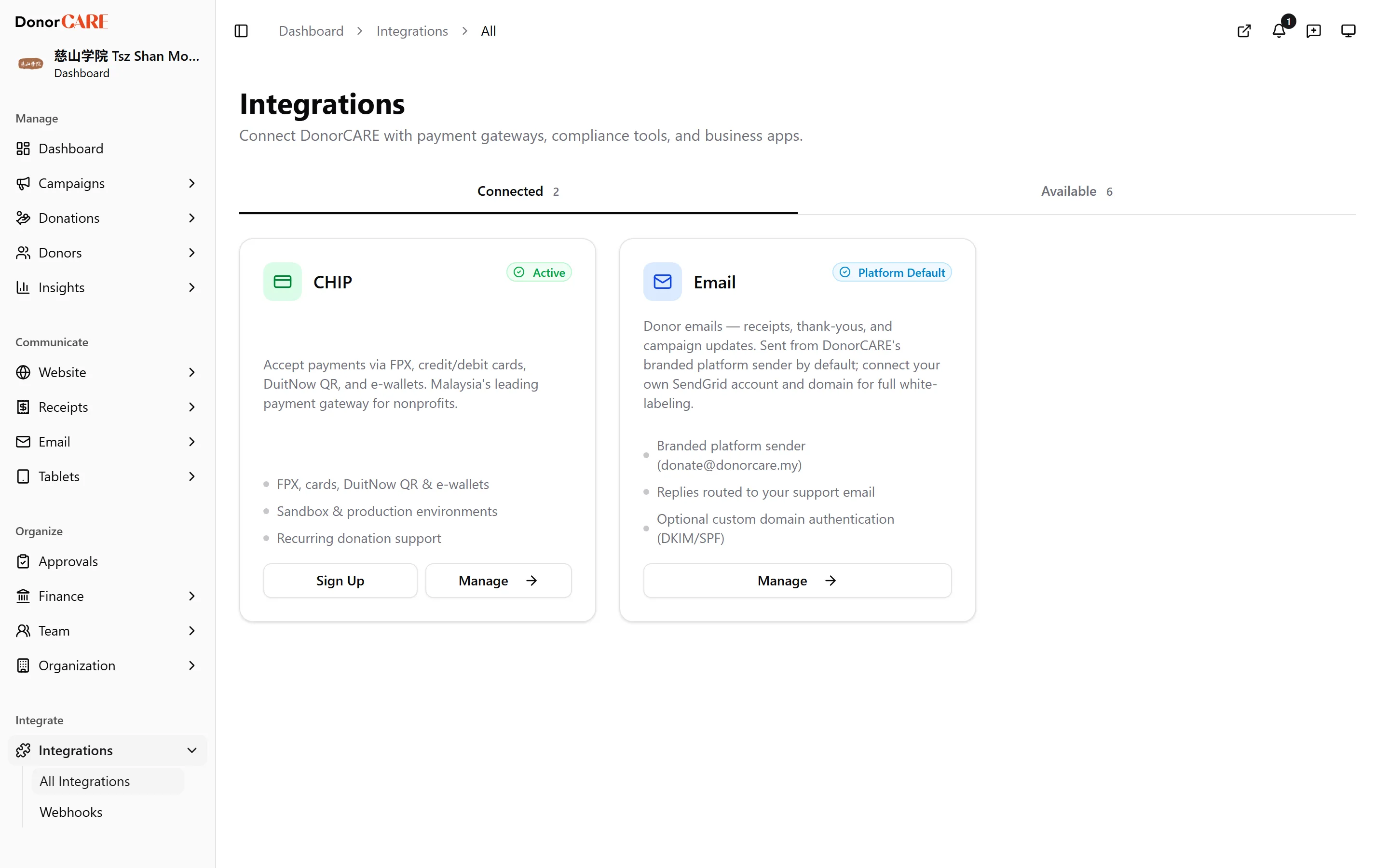
Open Integrations → FormCARE, from All Integrations in the sidebar.
-
Paste your FormCARE API token and select Connect.
-
Confirm the connection. Once connected, the page shows your workspace, a masked version of the token, and how many forms are available to attach.
-
Attach a form to a campaign. See Attach a form to a campaign — the connection itself doesn’t do anything until a form is linked to a campaign.
-
Disconnect if you no longer need it. Select Disconnect and confirm. Campaigns stop showing their linked forms and new submissions stop syncing, but responses already collected stay in FormCARE.
If something goes wrong
Section titled “If something goes wrong”| What you see | What it means | What to do |
|---|---|---|
| The token is rejected on Connect | The token is invalid, expired, or was created in the wrong FormCARE workspace | Generate a fresh token from FormCARE → Settings → API tokens and paste it again |
| A campaign’s form disappears after disconnecting | Disconnecting removes the link between your organisation and FormCARE for every campaign at once | Reconnect and re-attach the form if you disconnected by mistake — responses already collected are not lost |
Related
Section titled “Related”Screenshots use sample data. Every screen on this page is captured against a demo organisation seeded with generated donors, amounts, receipt numbers and campaigns. Any resemblance to a real person or organisation is coincidental.